
Creating a New Quote
A quote is how you turn a potential job into a real one.
It lays out exactly what the customer is getting—parts, labor, and total cost—so there are no surprises. Done right, it builds trust and makes it easy for the customer to say yes.
What Is a Quote?
A quote (or estimate) is a detailed breakdown of:
-
Parts and materials
-
Labor and services
-
Total cost
It sets clear expectations before any work begins and acts as the foundation for the job.
💡 Think of it as the final version of pricing—ready for approval.
How to Create a Quote
-
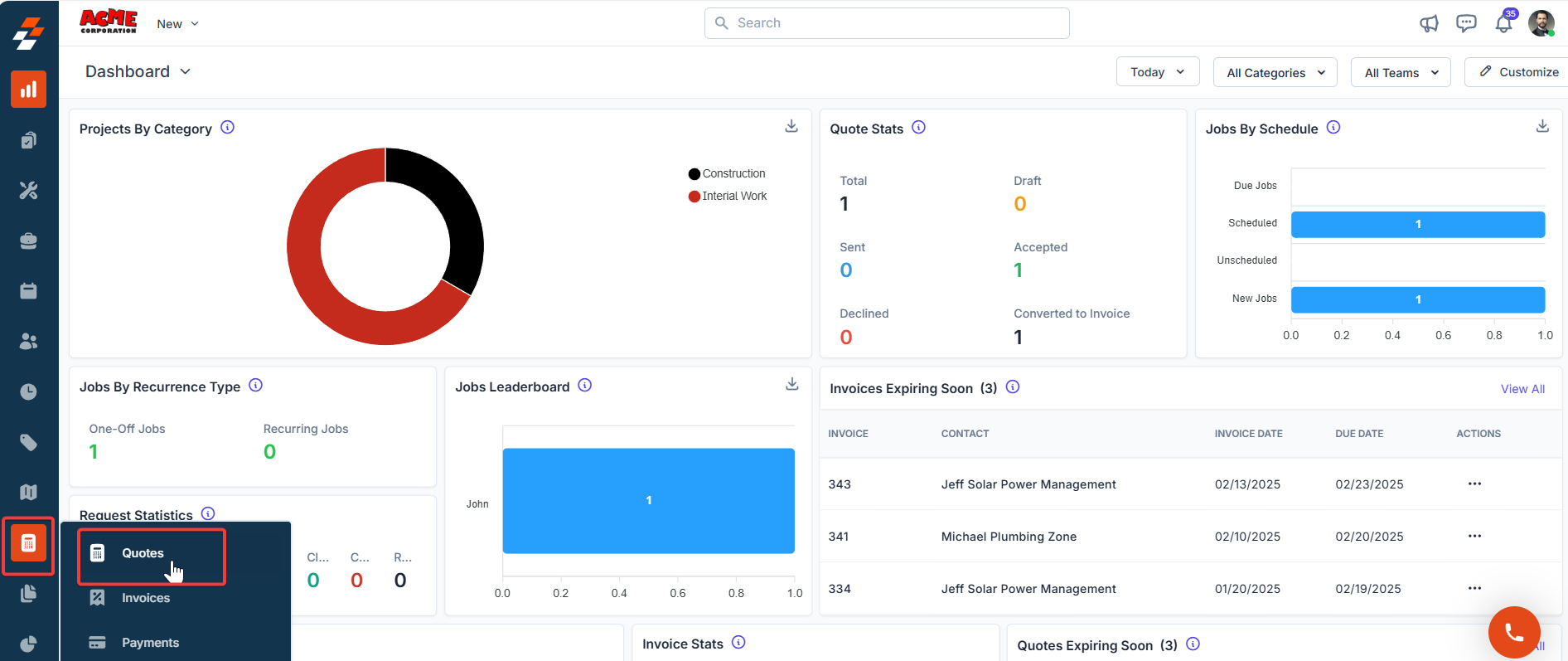
Click Quotes
-
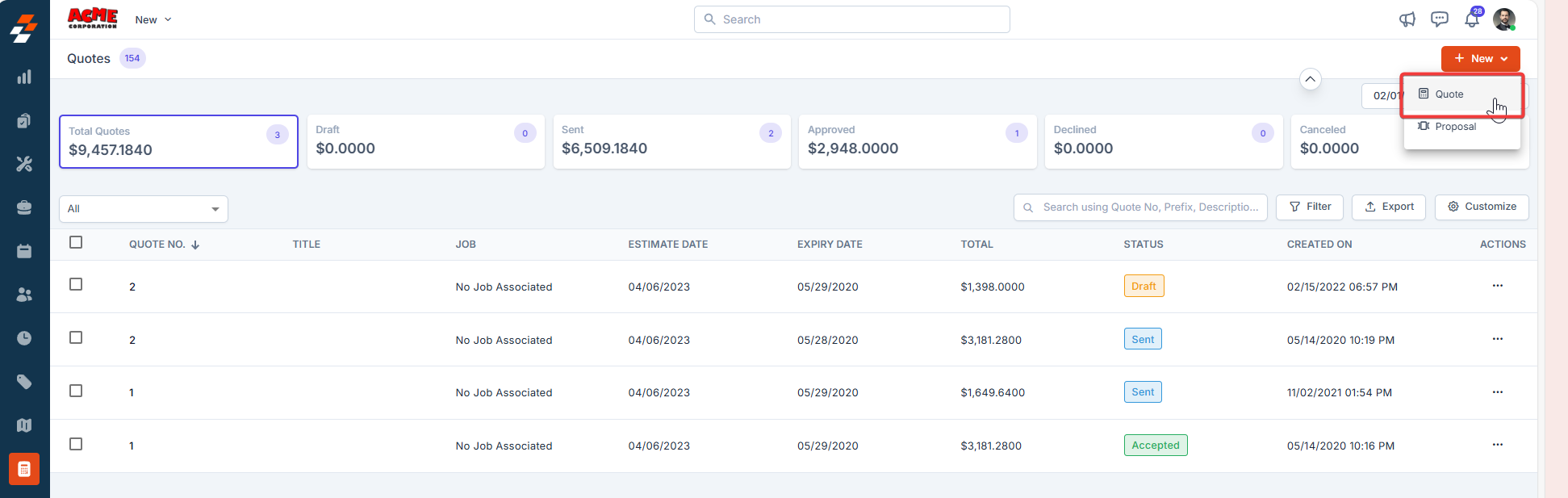
Select + New Quote
Step 1: Associate the Customer
Start by linking the quote to:
-
Customer
-
Organization
-
Property
Once selected:
-
Billing and service details will auto-fill
-
You can add additional associations if needed
Step 2: Fill Out Quote Details
Complete the required fields:
-
Quote Date
-
Expiry Date
-
Quote Template
Quote Owner (Sold By)
Assign the quote to a sales rep or team member responsible for closing the deal.
💡 If left blank, it defaults to the person who created it.
Step 3: Add Parts & Services
This is where the quote comes to life.
Click + Add and choose from:
-
Line Items
-
Bundles
-
Item Groups
-
Custom Line Items
💡 Best Practice:
Use bundles for installs and maintenance plans to save time and ensure consistency.
Important Notes
-
If asset tracking is required, each line item must be tied to an asset
-
Non-billable items may still appear for tracking, but won’t always carry through to invoices depending on workflow
Step 4: Adjust Pricing (Markup & Discounts)
You can fine-tune pricing directly inside the quote.
To edit a line item:
-
Click the three dots next to the item
-
Select Edit
From there, you can:
-
Apply markup:
-
Flat ($)
-
Percentage (%)
-
Multiplier (x)
-
-
Add discounts:
-
Percentage (%)
-
Fixed amount ($)
-
Step 5: Taxes & Totals
Zuper will automatically:
-
Calculate totals
-
Apply taxes (based on settings)
-
Adjust pricing as you update line items
⚠️ Keep in mind:
-
Tax and discount behavior depends on how items are configured
-
Mixing taxable and non-taxable items can affect calculations
Step 6: Margin Control (Optional)
You can adjust the overall margin for the quote to quickly:
-
Increase profitability
-
Recalculate pricing across all items
Step 7: Add Attachments
Upload any supporting files:
-
Photos
-
Agreements
-
Scope documents
Step 8: Save the Quote
Click Save as Draft to store your progress.
Once finalized, the quote can be sent to the customer for approval.
What Happens Next?
After the customer reviews and approves the quote:
👉 You can convert it directly into a job
👉 Your team can begin scheduling and execution
Summary
A strong quote does three things:
-
Clearly communicates scope and pricing
-
Builds confidence with the customer
-
Moves the deal toward approval
When used correctly, quotes become the bridge between sales and operations.
Pro Tips
-
Use bundles to standardize installs and service work
-
Keep descriptions clear and easy to understand
-
Double-check pricing before sending
-
Always set an expiry date to create urgency
What’s Next?
👉 Learn how to create a Proposal, or move forward with converting approved quotes into jobs.