
Why This Matters
When used correctly, time logging helps you:
-
Track true job costs (labor + travel)
-
Improve scheduling accuracy
-
Increase technician accountability
-
Identify inefficiencies in installs and service calls
How It Works (Mobile App)
Time logging is primarily done by technicians in the Zuper Mobile App.
Step 1: Open Your Jobs
-
Open the Zuper Mobile App
-
Go to the Dashboard
-
View your assigned jobs for the day
-
Tap into the job you’re working on
Step 2: Start Travel Time
When heading to the job (or picking up materials):
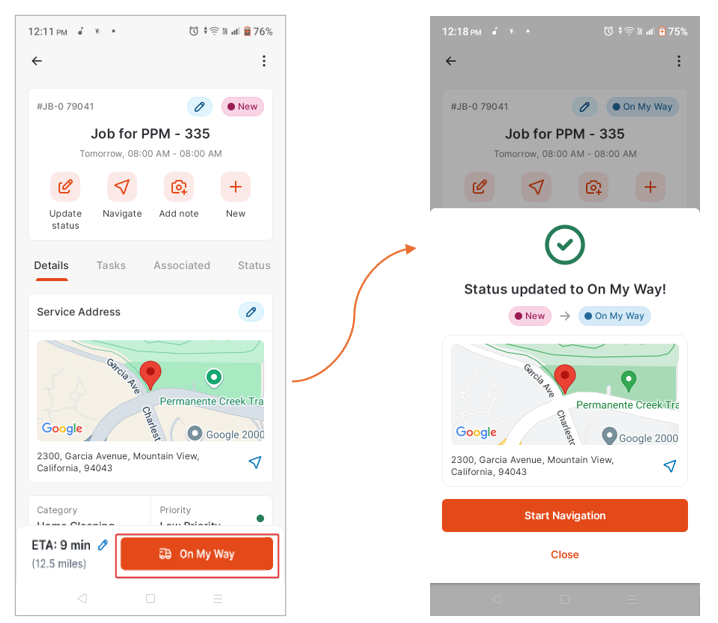
👉 Tap On My Way
This will:
-
Start tracking travel time
-
Automatically update the job status (based on your setup)
Step 3: Navigate to the Job
-
Tap Start Navigation
-
Choose your preferred app (Google Maps, etc.)
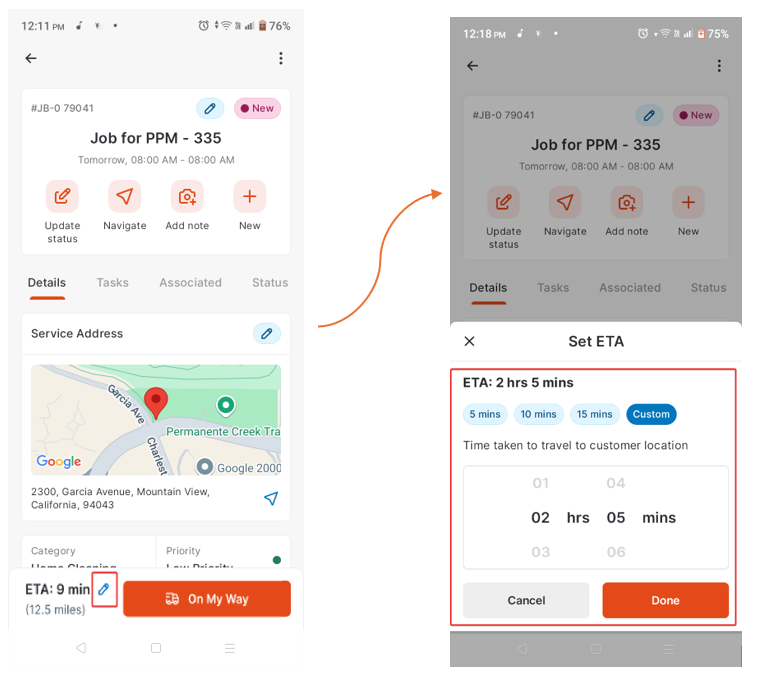
💡 You can adjust ETA if needed.
Step 4: Stop Travel Time
When you arrive on-site:
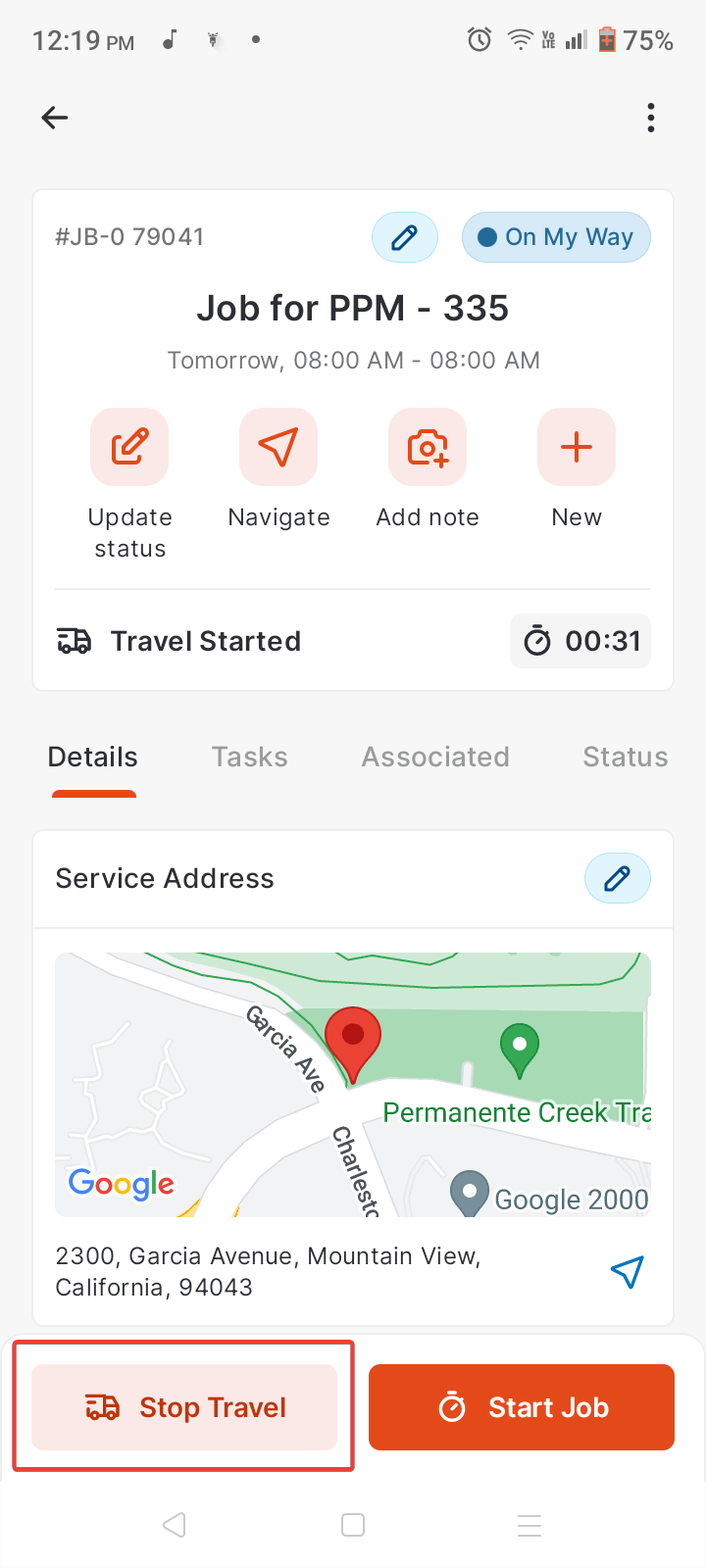
👉 Tap Stop Travel
This ends travel tracking.
Step 5: Start Labor Time
When you begin working:
👉 Tap Start Job
This will:
-
Start tracking labor time
-
Automatically update job status to “Started” (or equivalent)
Step 6: Pause the Job (If Needed)
If work is interrupted:
👉 Tap Pause Job
You’ll have options:
-
Meal Break → Logged separately
-
Material Needed → Pause work, may resume travel
-
Other → Any additional reason
💡 If needed, the job can be set to On Hold.
Step 7: Resume Work
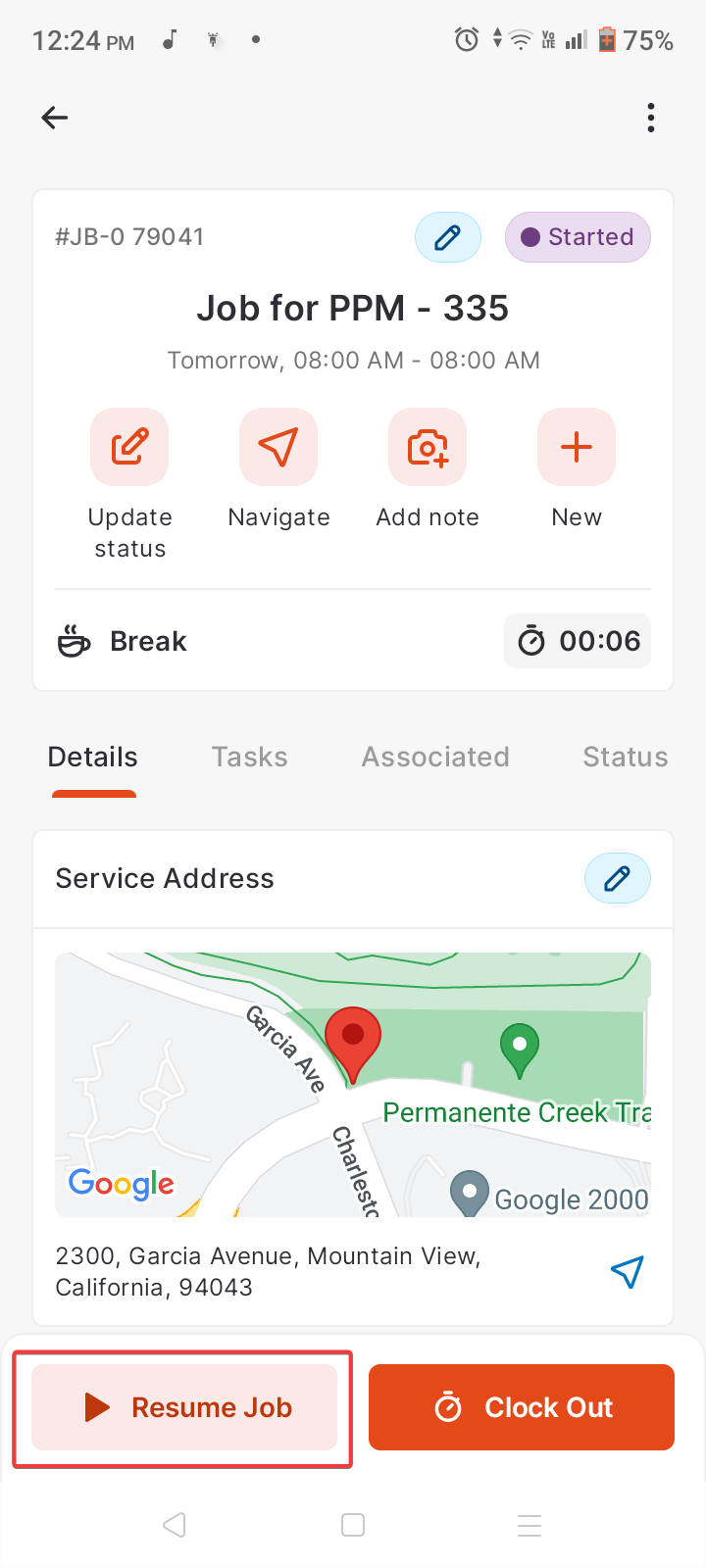
👉 Tap Resume Job to continue labor tracking
Step 8: Clock Out
When all work is complete:
👉 Tap Clock Out
This stops:
-
Travel time
-
Labor time
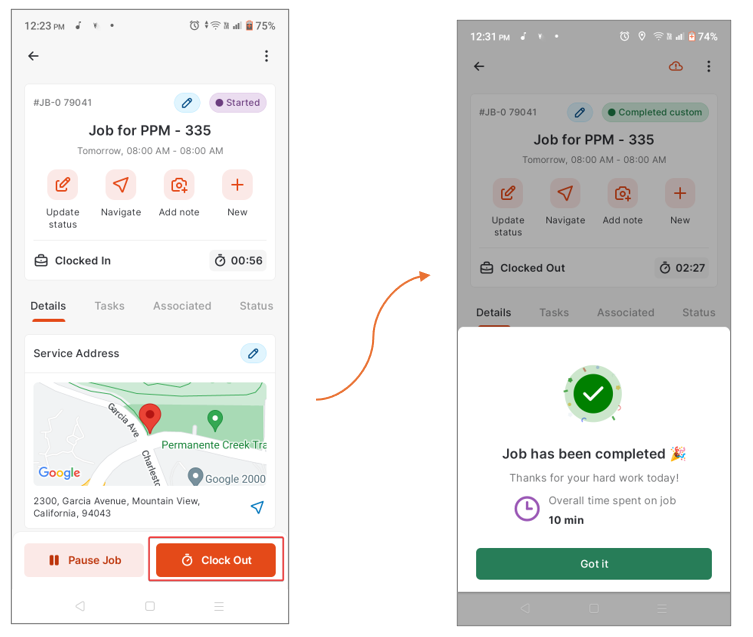
Step 9: Complete the Job
If you are the Primary Technician:
👉 Update job status to Completed
⚠️ Note:
-
Only the Primary Technician can control job status
-
Other technicians can log time but cannot complete the job
Primary vs Secondary Technicians
Primary Technician
-
Controls job status
-
Responsible for completion
-
Drives workflow
Other Technicians
-
Can log travel and labor time
-
Cannot change job status
Updating Job Status Manually
You can also update job status directly:
-
Open the job
-
Tap Update Status
-
Select the appropriate status
💡 Depending on your setup:
-
Status changes may automatically start/stop timers
-
Or prompt you to start tracking time
How Job Status Affects Time Tracking
Your system may be configured so that:
-
On My Way → Starts travel time
-
Started → Starts labor time
-
On Hold → Pauses time
-
Completed / Closed → Stops all time
Viewing Timelog Summary (Mobile)
To review time logged:
-
Open the job
-
Tap View Timelog History
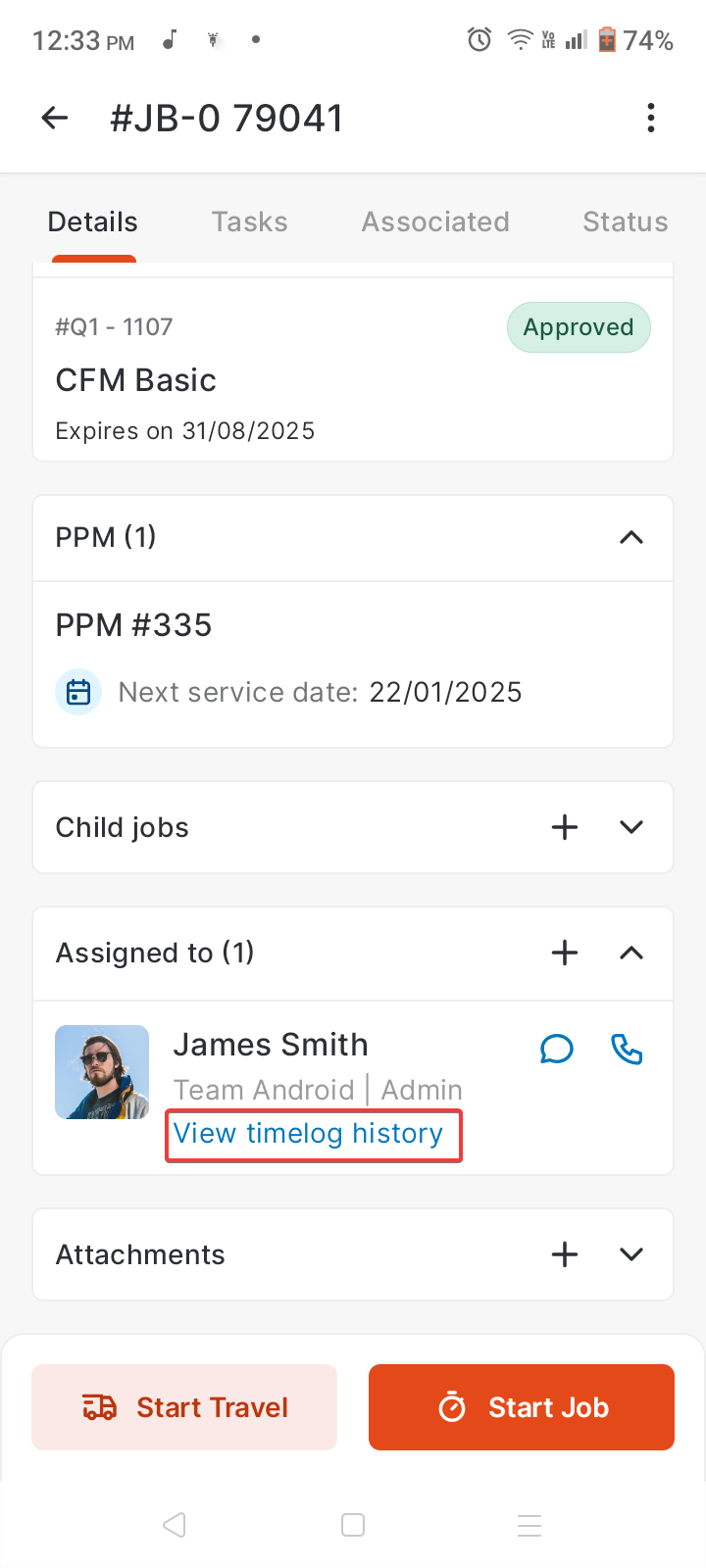
You’ll see:
-
Total time logged
-
Travel vs labor breakdown
-
Daily activity
Working Offline (Mobile)
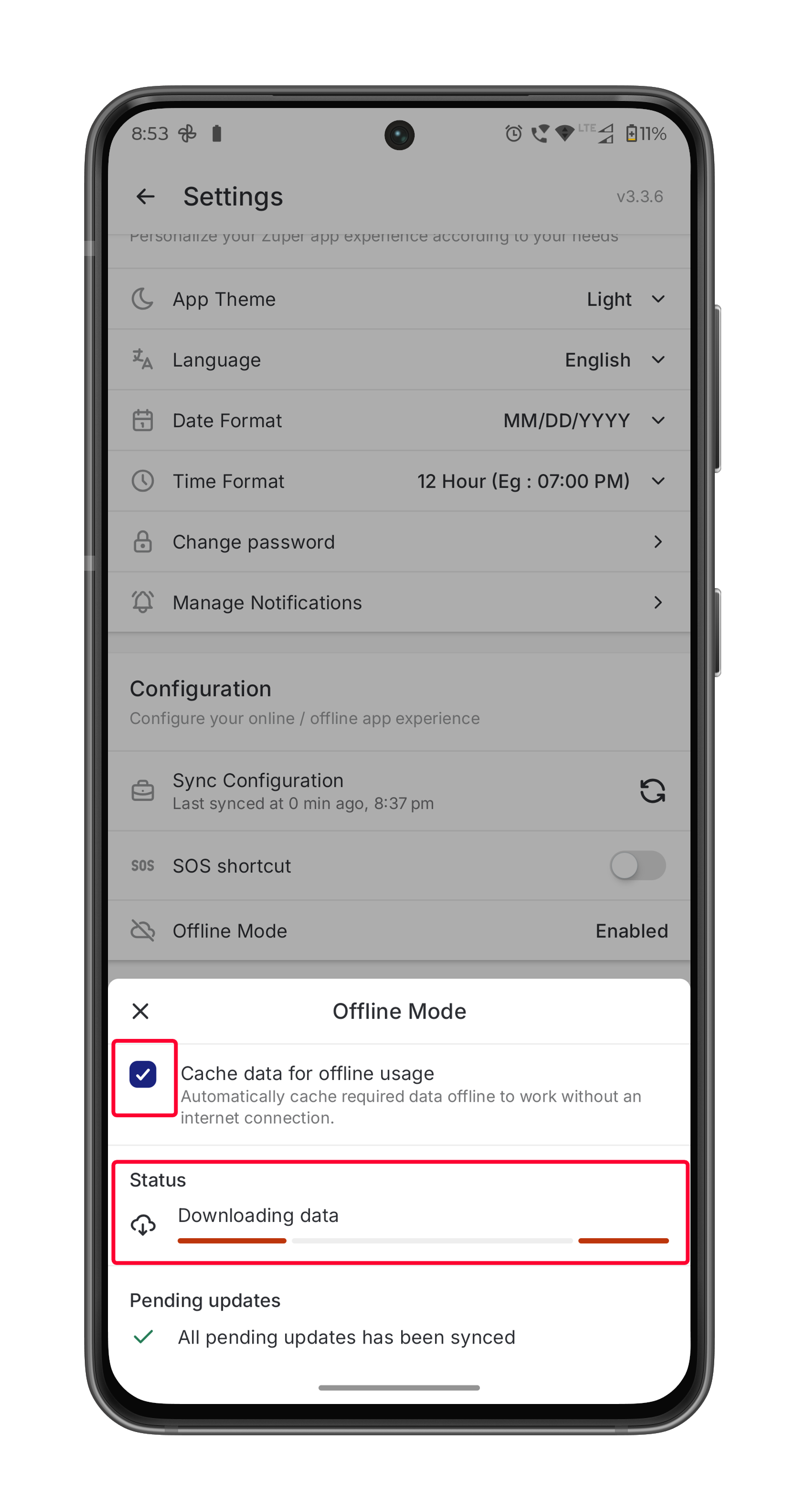
Zuper allows time logging even without internet.
How It Works:
-
Time entries are saved locally
-
Marked as offline activity
-
Automatically synced when back online
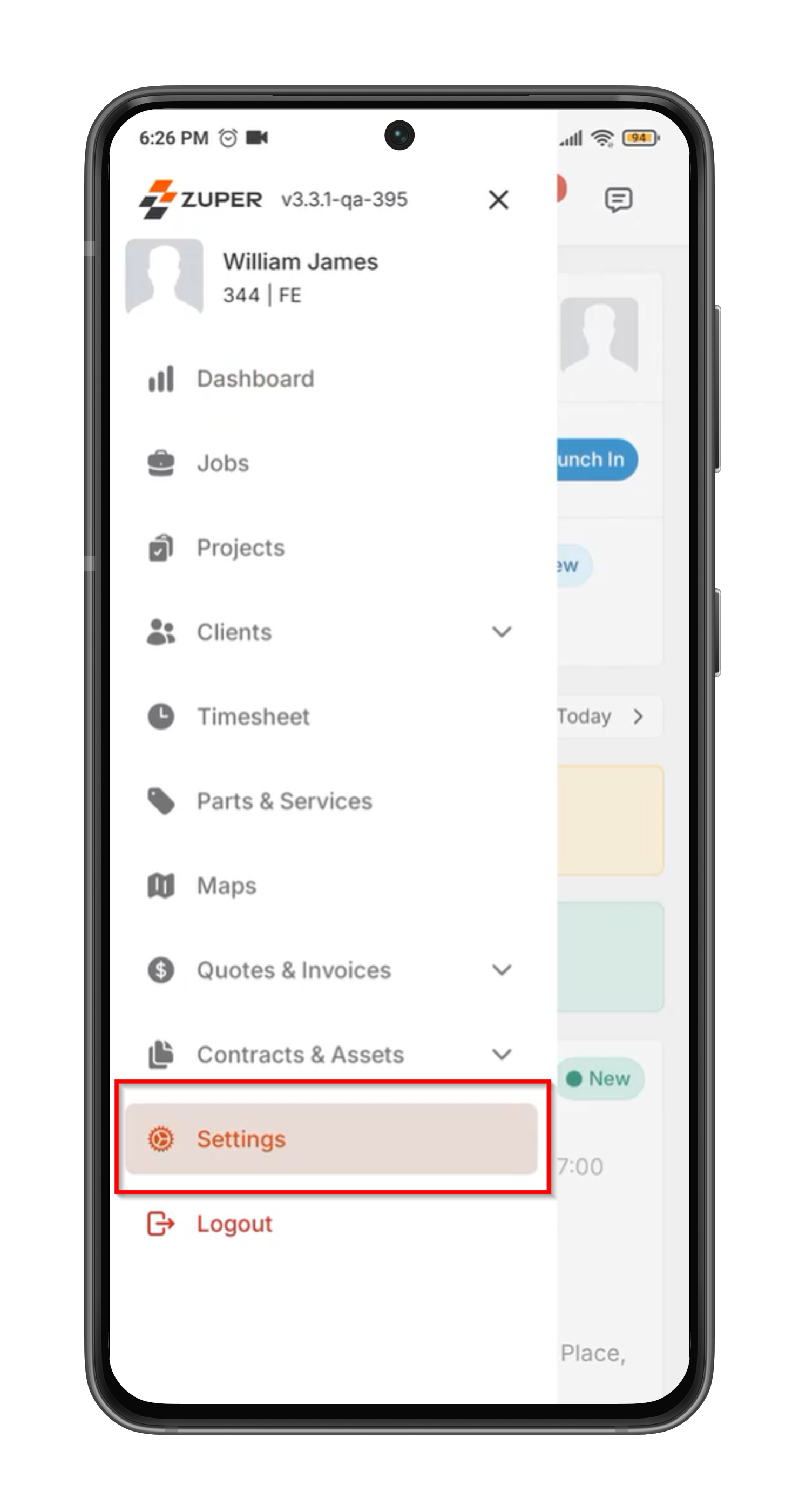
💡 Make sure offline mode is enabled in settings before relying on this.
Summary
Logging time correctly ensures:
-
Accurate job costing
-
Better scheduling
-
Clear accountability
It’s one of the most important habits for your field team.
Pro Tips
-
Start travel time when you leave—not when you arrive
-
Always switch to labor time when work begins
-
Don’t wait until the end of the day to log time
-
Primary tech should always complete the job
What’s Next?
👉 Learn how to track technician locations in real-time or review timelog summaries for deeper insights.