
Accessing Your Invoices
-
Go to Accounting
-
Click Invoices
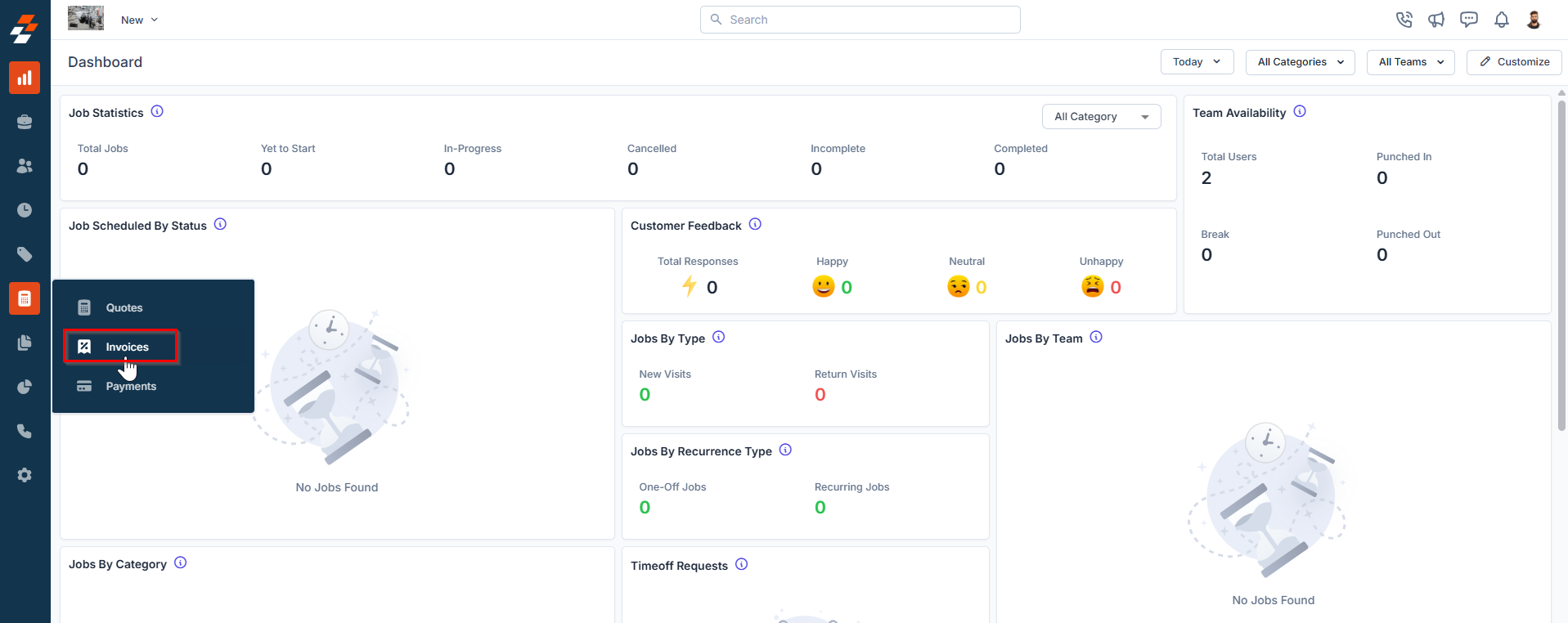
This will take you to the Invoices Listing Page, where you can see all invoices at a glance.
Understanding the Invoices Listing Page
This is your command center for billing.
Here, you can quickly view:
-
Invoice number
-
Invoice date
-
Due date
-
Status (Draft, Sent, Paid, Overdue)
Summary Cards (Top of Page)
At the top, you’ll see key metrics like:
-
Total invoices
-
Paid vs unpaid amounts
-
Overdue invoices
-
Partially paid balances
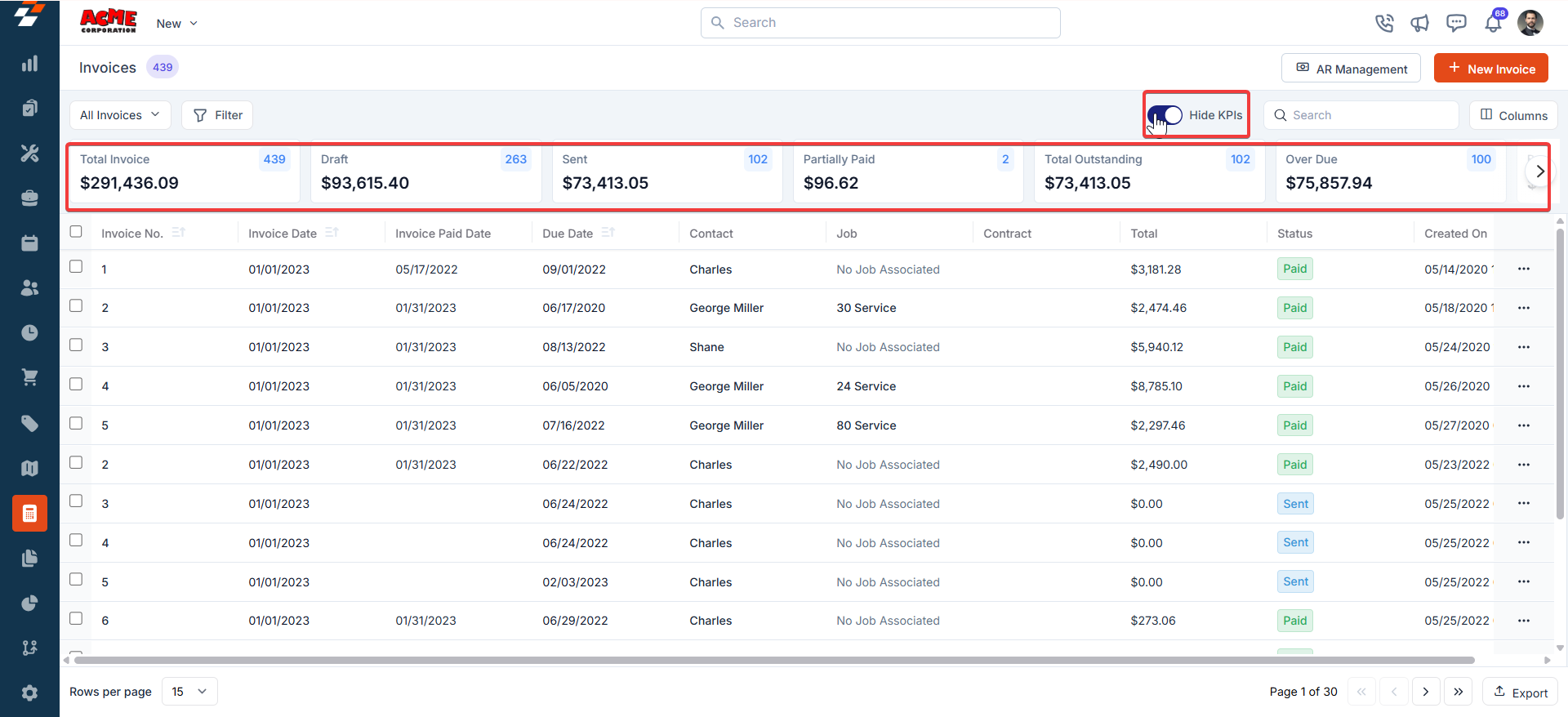
💡 Use this to quickly spot cash flow issues.
Customizing Your View
You can tailor the invoice list to match how your team works.
Adjust Columns
-
Add or remove fields
-
Reorder columns
-
Save custom views
Save & Share Views
-
Save your layout as a new view
-
Share with specific users or teams
-
Create role-specific dashboards (sales vs accounting)
Using Filters
Filters help you find exactly what you need.
You can filter by:
-
Status (Paid, Overdue, Draft)
-
Date ranges
-
Customers
-
Amounts
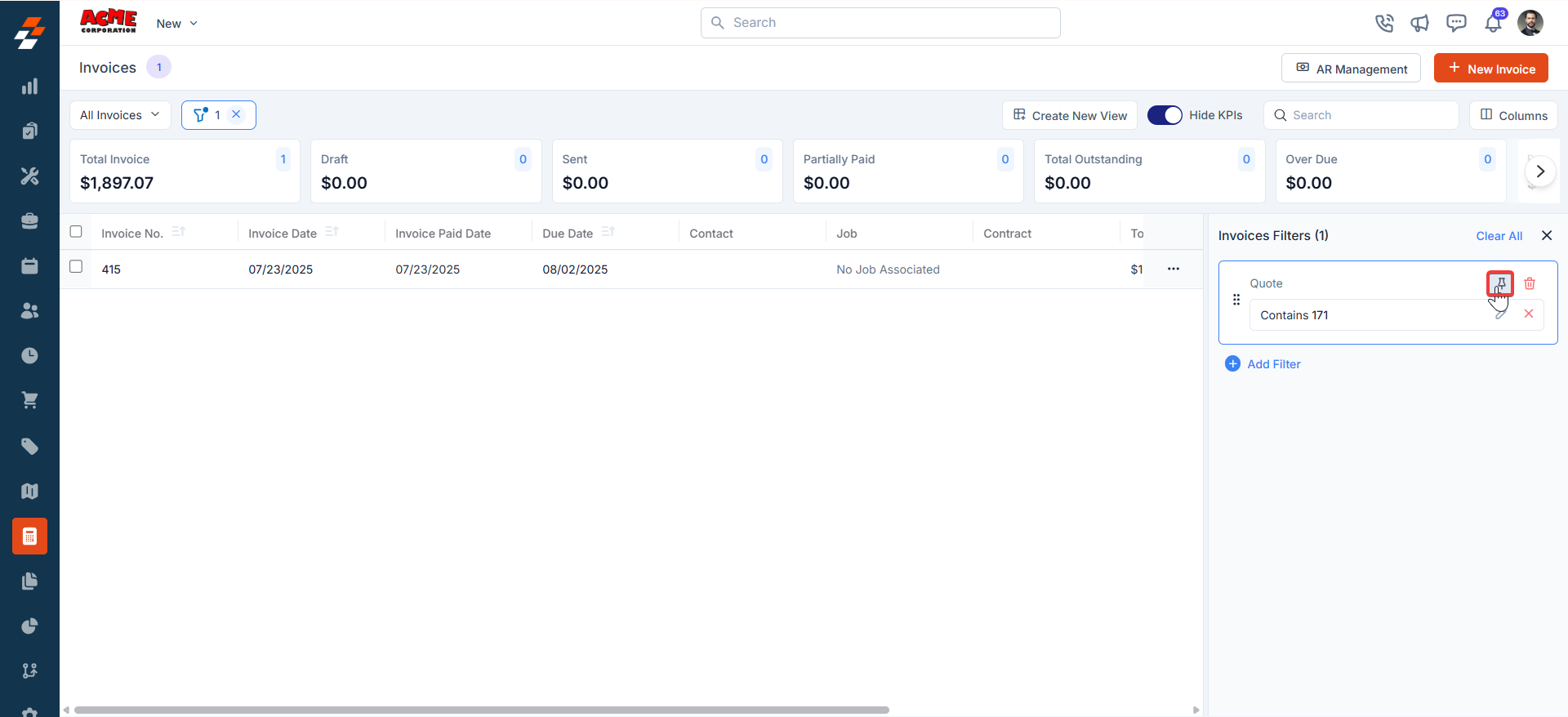
Pin Your Filters
Save your most-used filters for quick access.
-
Pin up to 3 filters
-
Apply them instantly without rebuilding each time
💡 Example:
Create a pinned filter for “Overdue Invoices” to check daily.
Opening an Invoice
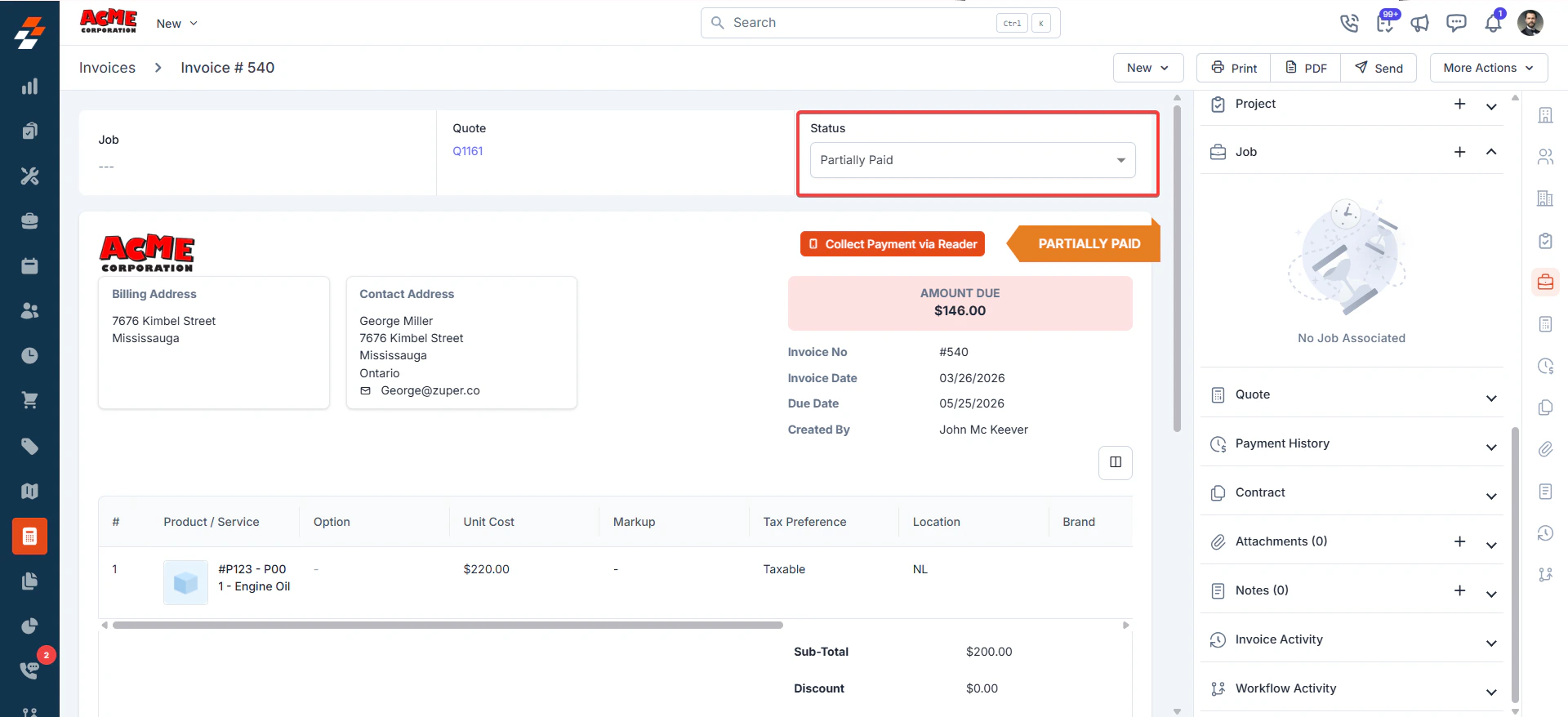
Click on any invoice to open the Invoice Details Page.
This is where you manage everything related to that invoice.
Invoice Details Page
The page is split into two main sections:
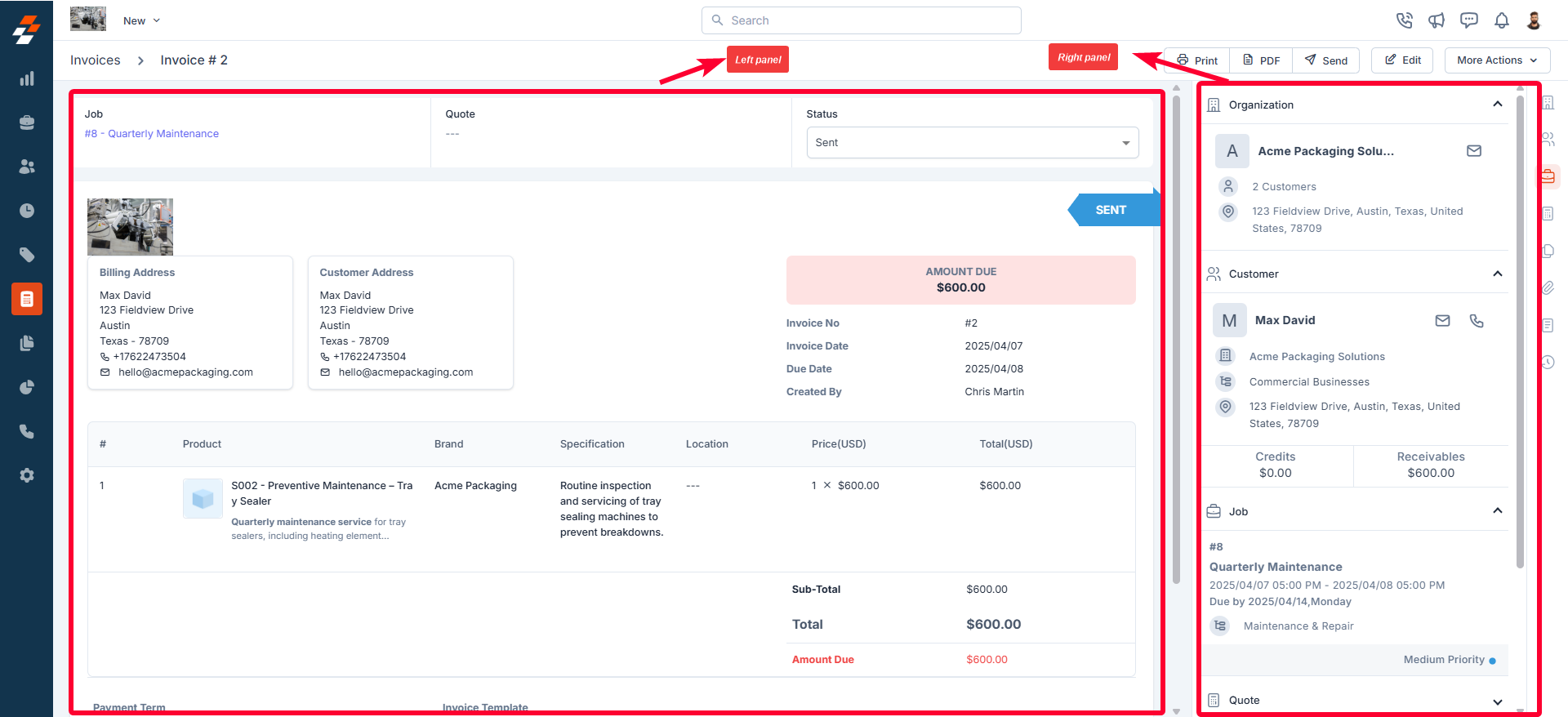
Left Panel (Core Details)
This is where the main information lives:
-
Customer & billing info
-
Associated job or quote
-
Invoice status
-
Invoice total, dates, and terms
-
Parts and services billed
Right Panel (Context & Actions)
This section gives you deeper insight and quick access to actions.
Customer & Contact Info
-
Organization details
-
Contact information
-
Credits and outstanding balances
Payment History
Track every payment tied to the invoice:
-
Who paid
-
When it was paid
-
Payment method
-
Status (Success, Pending, Failed)
💡 Important:
Refunds may take time to reflect in invoice status.
Associated Records
Link or view related items like:
-
Jobs
-
Quotes
-
Projects
Actions You Can Take
From the invoice page, you can:
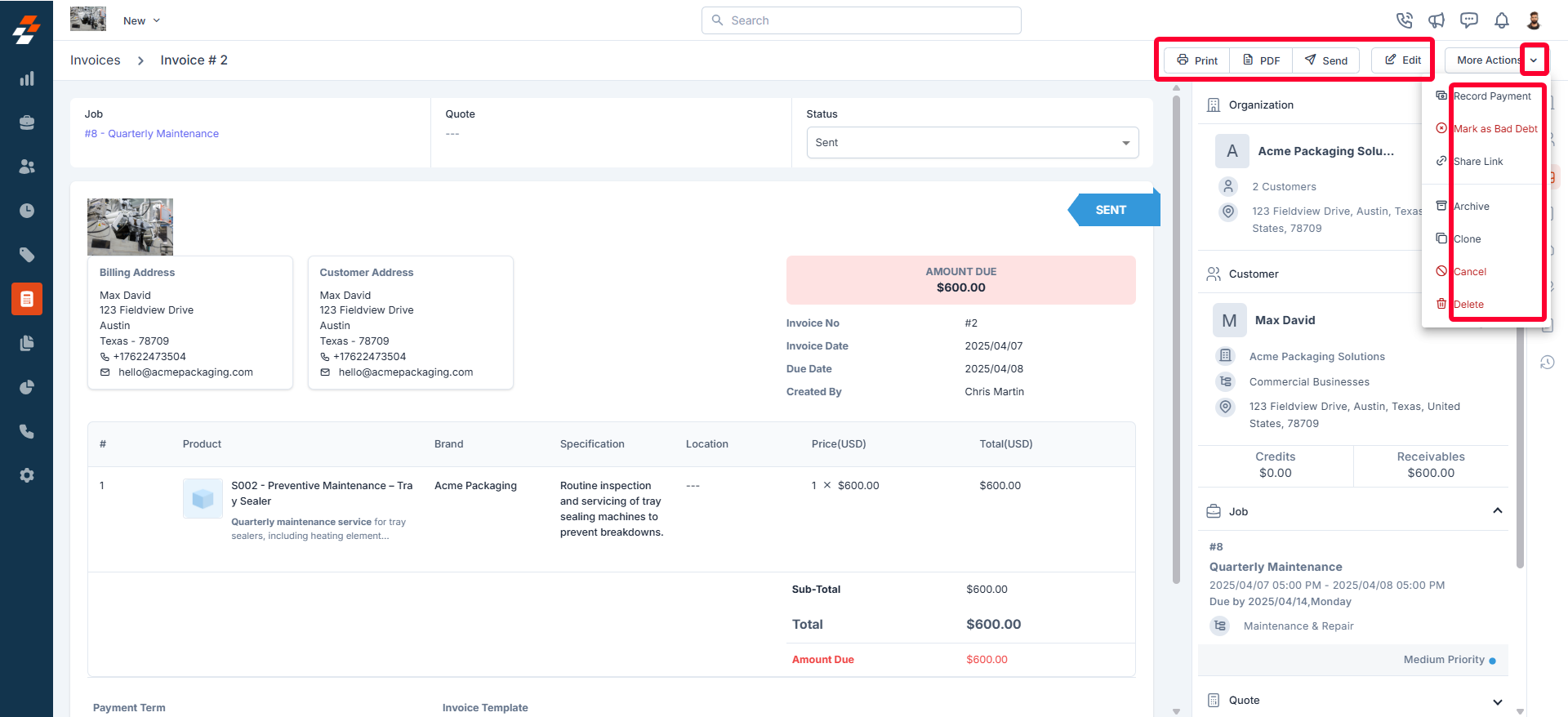
Send the Invoice
Email directly to the customer.
Download or Print
Generate a PDF for records or sharing.
Edit the Invoice
Update pricing, details, or line items if needed.
Record Payments
Log payments manually:
-
Full payments
-
Partial payments
-
Multiple transactions
Share Payment Link
Send a payment link so customers can pay online.
Create a Job
If additional work is needed, create a job directly from the invoice.
Mark as Bad Debt
If an invoice won’t be collected, mark it for accounting purposes.
Archive / Cancel / Delete
Manage the lifecycle of the invoice based on your workflow.
Managing Invoices on Mobile
Your team can also manage invoices in the field using the mobile app.
What You Can Do:
-
View invoices tied to a job
-
Check payment status
-
Share invoices with customers
-
Record payments on-site
How to Access:
-
Open the Zuper Mobile App
-
Navigate to the Job
-
Go to the Invoice section
💡 Best Practice:
Have technicians confirm invoice details and collect payment before leaving the site whenever possible.
Summary
Managing invoices effectively helps you:
-
Stay organized
-
Track payments in real time
-
Improve cash flow
-
Reduce missed or late payments
Pro Tips
-
Check overdue invoices daily
-
Use pinned filters for quick visibility
-
Encourage on-site payment collection
-
Keep invoice details clean and accurate
What’s Next?
👉 Learn how to record payments and manage accounts receivable.