
Viewing Assigned Jobs
Technicians can access their jobs in two ways:
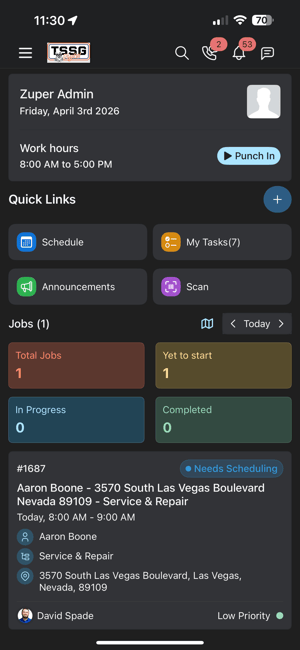
From the Dashboard
-
Scroll to Assigned Jobs
-
View all jobs for the selected date range
-
Tap any job to open details
From the Menu
-
Tap the Menu (☰)
-
Select Jobs
-
Choose a job from the list
💡 Best Practice:
Always start your day by reviewing assigned jobs to understand your schedule and priorities.
Understanding the Job Details Page
Once inside a job, everything needed to complete the work is organized into tabs.
Details Tab
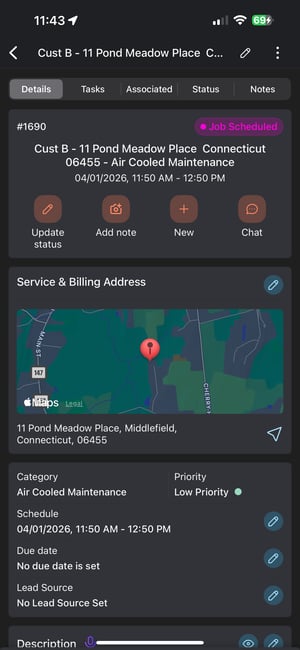
This is your main job overview:
-
Service address (where you’re going)
-
Job category (install, service, maintenance)
-
Priority level
-
Schedule and due date
-
Job description / scope of work
-
Customer and contact information
-
Assigned team members
-
Attachments
Tasks Tab
This is your checklist for the job.
-
View required service tasks
-
Complete inspections or forms
-
Mark tasks as complete
💡 Best Practice:
Always complete tasks before finishing the job—this ensures quality and consistency.
Associated Tab
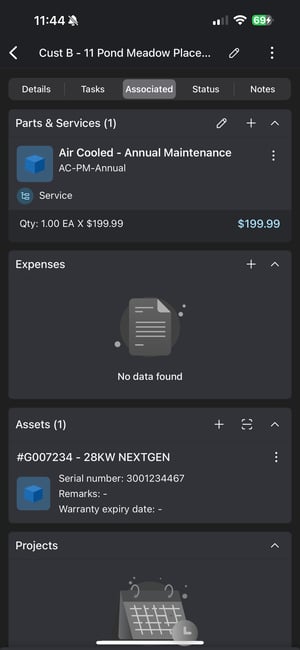
This connects everything tied to the job:
-
Parts & services
-
Material requests
-
Assets (generator unit)
-
Quotes and invoices
This is also where you can:
👉 Add parts
👉 Review pricing
👉 Collect payment
Gallery Tab
-
View job photos and videos
-
Upload new images from the field
Use this for:
-
Before/after photos
-
Documentation
-
Proof of work
Status Tab
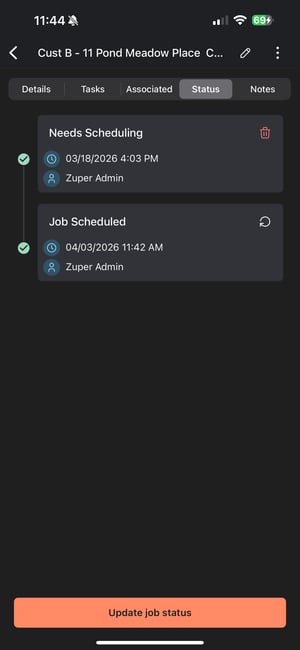
Shows the full job timeline:
-
Status updates
-
Timestamps
-
Who made updates
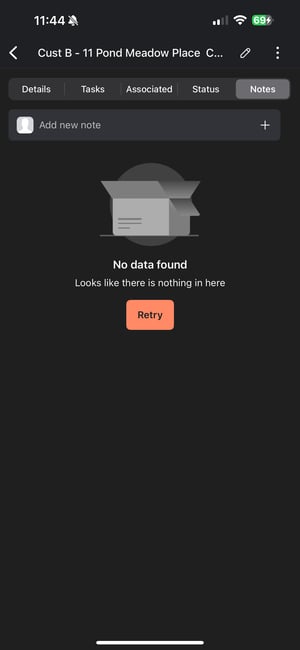
Notes Tab
This is where you document the job.
You can add:
-
Photos
-
Videos
-
Audio
-
Text notes
-
Documents
-
Scanned files
💡 Pro Tip:
Document everything. This protects your team and improves communication.
Adding Job Notes
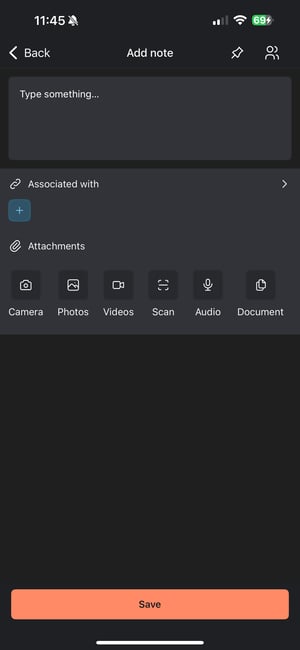
To add a note:
-
Tap Add Note
-
Choose what you want to upload:
-
Photo
-
Video
-
Audio
-
Document
-
Text
-
Scan
-
-
Add description if needed
-
Tap Submit
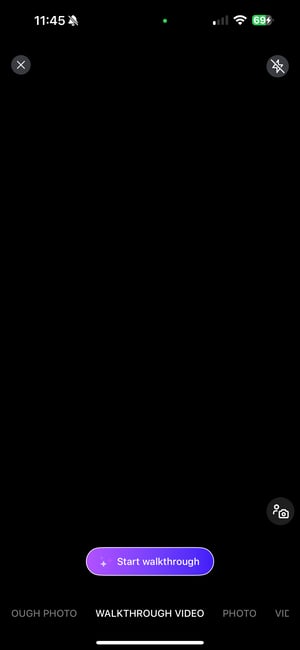
Advanced: AI Walkthrough Notes
You can:
-
Take photos
-
Record voice
Zuper AI will:
-
Transcribe your notes
-
Create a structured summary
Updating Job Status
Keeping job status updated is critical for dispatch, office staff, and customers.
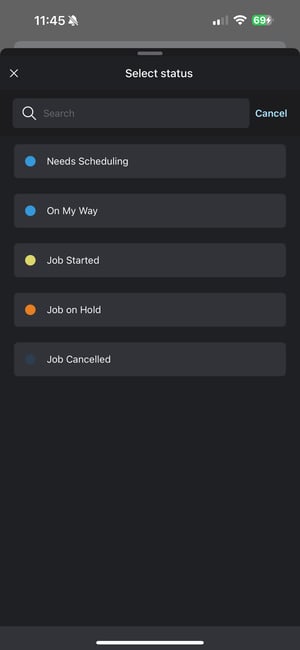
How to Update Status
-
Open the job
-
Tap Update Status
-
Select the next status:
-
On My Way
-
Started
-
On Hold
-
Completed
-
Closed
-
-
Complete any required checklist
-
Tap Submit
What Happens Next
-
Status updates in real time
-
Timeline is recorded
-
Team and office stay informed
Status + Time Tracking
If timelogs are enabled:
-
On My Way → Starts travel time
-
Started → Starts labor time
-
On Hold → Pauses time
-
Completed → Stops time
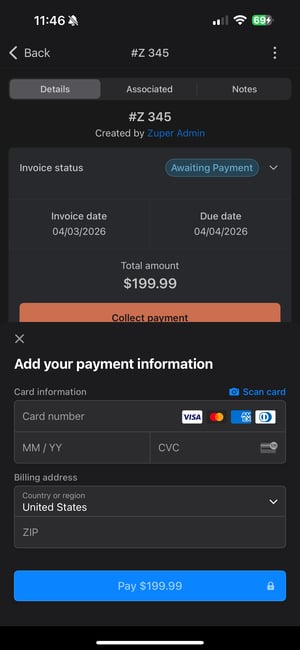
Collecting Payments (Mobile)
Technicians can collect payment directly from the job.
How to Collect Payment
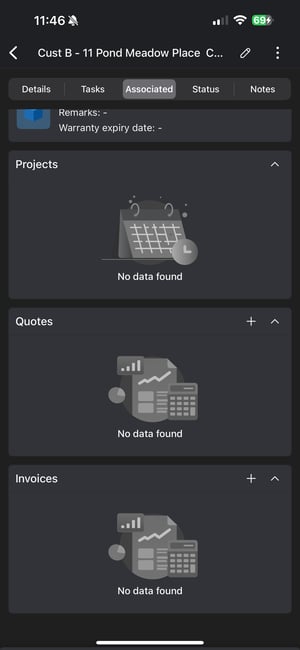
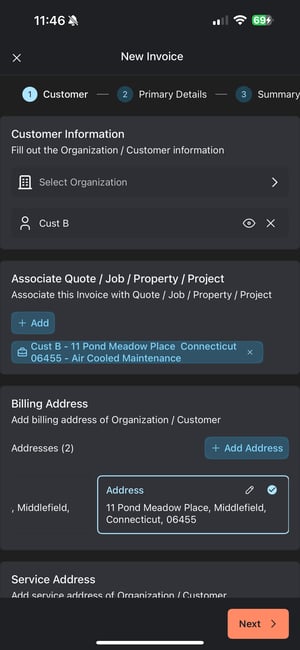
-
Open the job
-
Go to Associated → Invoices
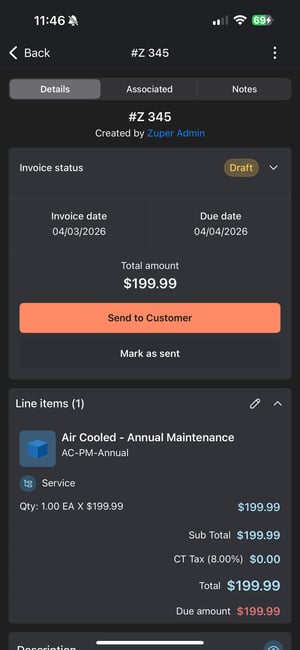
-
Open the invoice
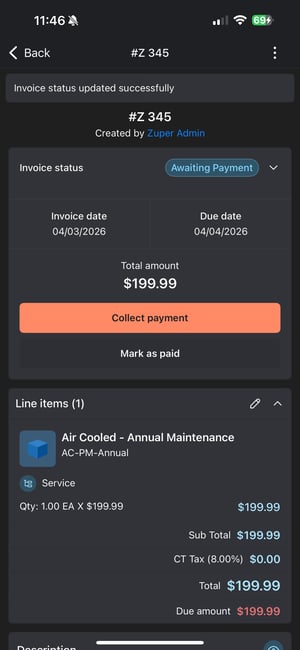
-
Tap Record Payment
Payment Methods
Depending on your setup:
-
Credit Card
-
ACH / Bank Transfer
-
Cash
-
Other methods
Using Zuper Pay (Recommended)
With Zuper Pay, techs can:
-
Take credit card payments on-site
-
Accept ACH payments
-
Process payments instantly
💡 Best Practice:
Always collect payment before leaving the job site whenever possible.
Summary
Job Management in the mobile app allows your technicians to:
-
View and complete jobs
-
Track time
-
Add notes and documentation
-
Update status
-
Collect payment
Everything they need—right from their phone.
Pro Tips
-
Review jobs at the start of the day
-
Update status in real time
-
Complete all tasks before closing a job
-
Document everything with notes and photos
-
Collect payment on-site when possible
What’s Next?
👉 Learn how to log time on jobs or manage timelog summaries for better performance tracking.