
Why This Matters
When you record payments properly, you:
-
Keep invoice statuses accurate (Paid, Partially Paid, etc.)
-
Maintain clean financial records
-
Track outstanding balances
-
Improve cash flow visibility
How to Record a Payment (Desktop)
-
Go to Accounting
-
Click Invoices
-
Open the invoice you want to update
Step 1: Open Payment Options
-
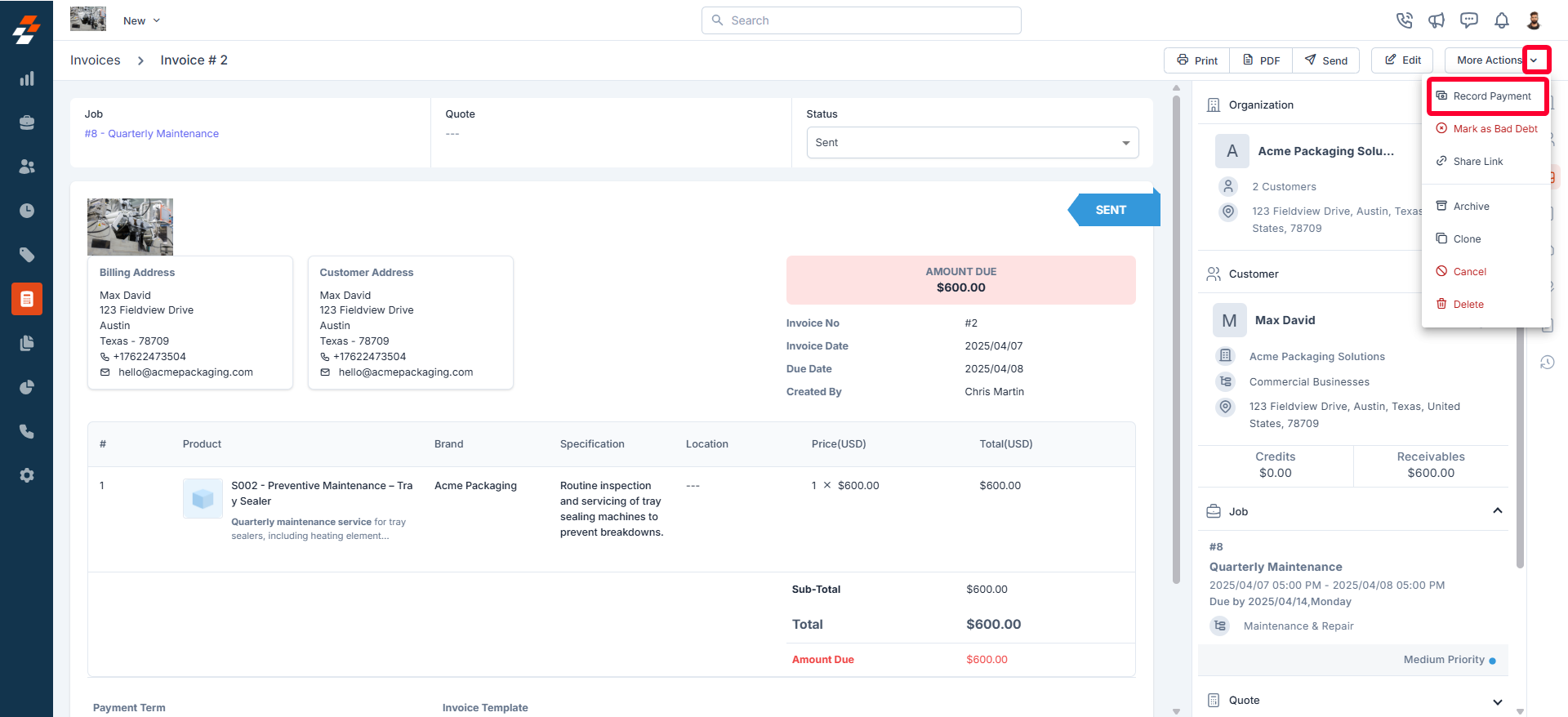
Click More Actions (top right)
-
Select Record Payment
Step 2: Enter Payment Details
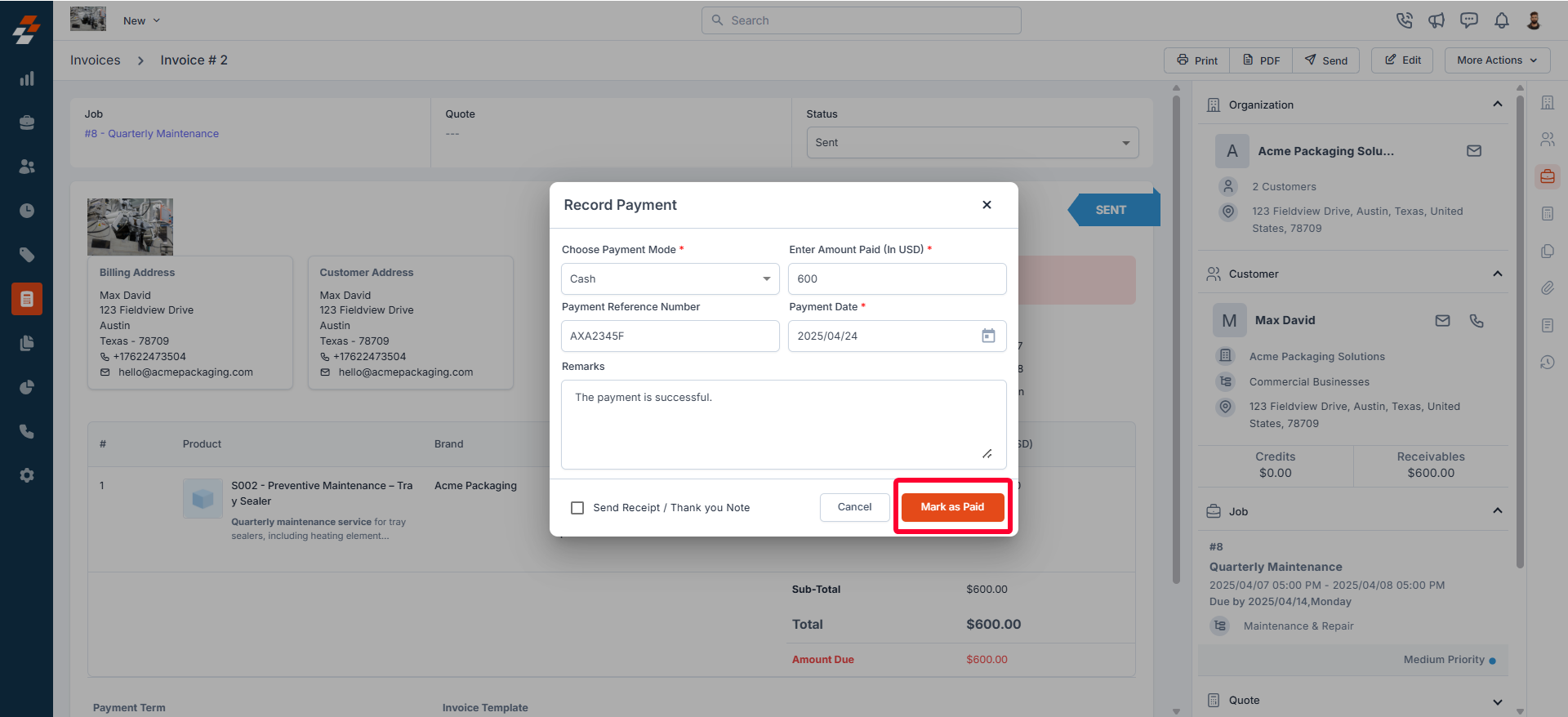
Fill in the required fields:
-
Payment Method
(Card, Bank Transfer, Check, Zuper Pay, Cash, etc.) -
Amount Paid
Enter the exact amount received -
Payment Date
Select when the payment was made -
Reference Number (Optional)
Transaction ID, check number, etc. -
Remarks (Optional)
Any notes for internal tracking
Step 3: Send Receipt (Optional)
You can choose to:
-
Send a receipt
-
Send a thank-you message
Step 4: Save the Payment
Click Mark as Paid (Only needed if recording cash or check payment)
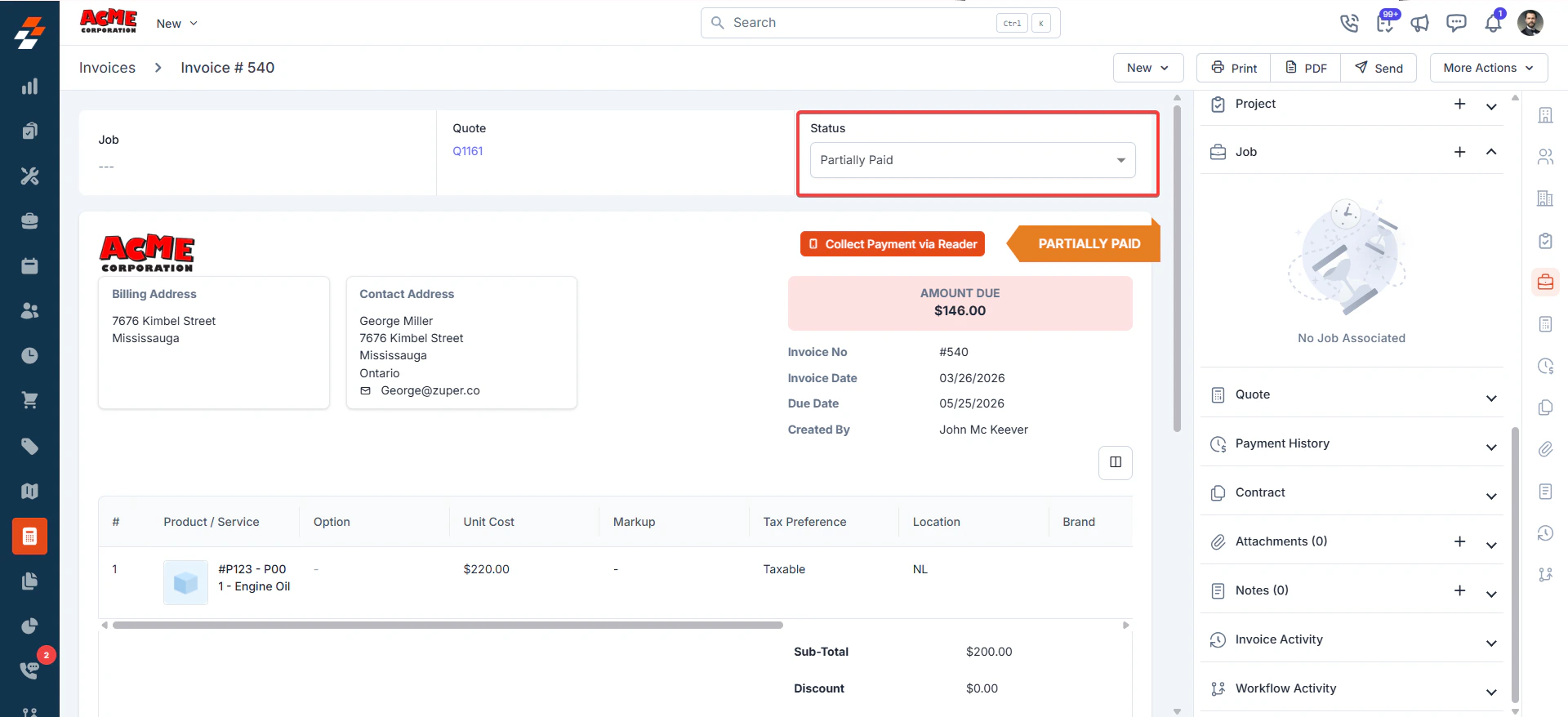
The invoice will automatically update to:
-
Paid
-
Partially Paid (if not fully collected)
Important Notes
-
Partial payments can be recorded multiple times until the invoice is fully paid
-
Refunds may take time to reflect in invoice status
-
Always double-check amounts before saving
Recording Payments on Mobile (Field Use)
Your technicians can collect and record payments directly on-site using the Zuper mobile app.
How to Record Payment in the Field
-
Open the Zuper Mobile App
-
Navigate to the Job
-
Go to the Invoice section
-
Tap Record Payment
Enter Payment Details
-
Select payment method
-
Enter amount
-
Add notes if needed
-
Save the payment
Using Zuper Pay (Recommended)
If you’re using Zuper Pay, your technicians can collect payments instantly in the field.
Supported Methods:
-
Credit Card (CC)
-
ACH / Bank Transfer
This allows you to:
-
Take payment before leaving the job site
-
Reduce delays in collections
-
Eliminate manual follow-up
💡 Best Practice:
Have techs collect payment immediately after completing the job whenever possible.
What Happens Next?
Once payment is recorded:
-
Invoice status updates automatically
-
Payment is logged in the invoice history
-
Your accounting stays accurate
Summary
Recording payments ensures:
-
You know exactly what’s been collected
-
Your invoices stay up to date
-
Your cash flow stays predictable
Pro Tips
-
Collect payment on-site whenever possible
-
Use Zuper Pay for faster collections
-
Record payments immediately—don’t wait
-
Monitor partially paid invoices closely
What’s Next?
👉 Learn how to manage accounts receivable and stay on top of outstanding balances.