
Why Time-Off Tracking Matters
Managing time-off properly helps you:
-
Avoid scheduling conflicts
-
Maintain proper technician coverage
-
Plan installs and service work more effectively
-
Keep your team aligned and accountable
Accessing Time-Off Requests
-
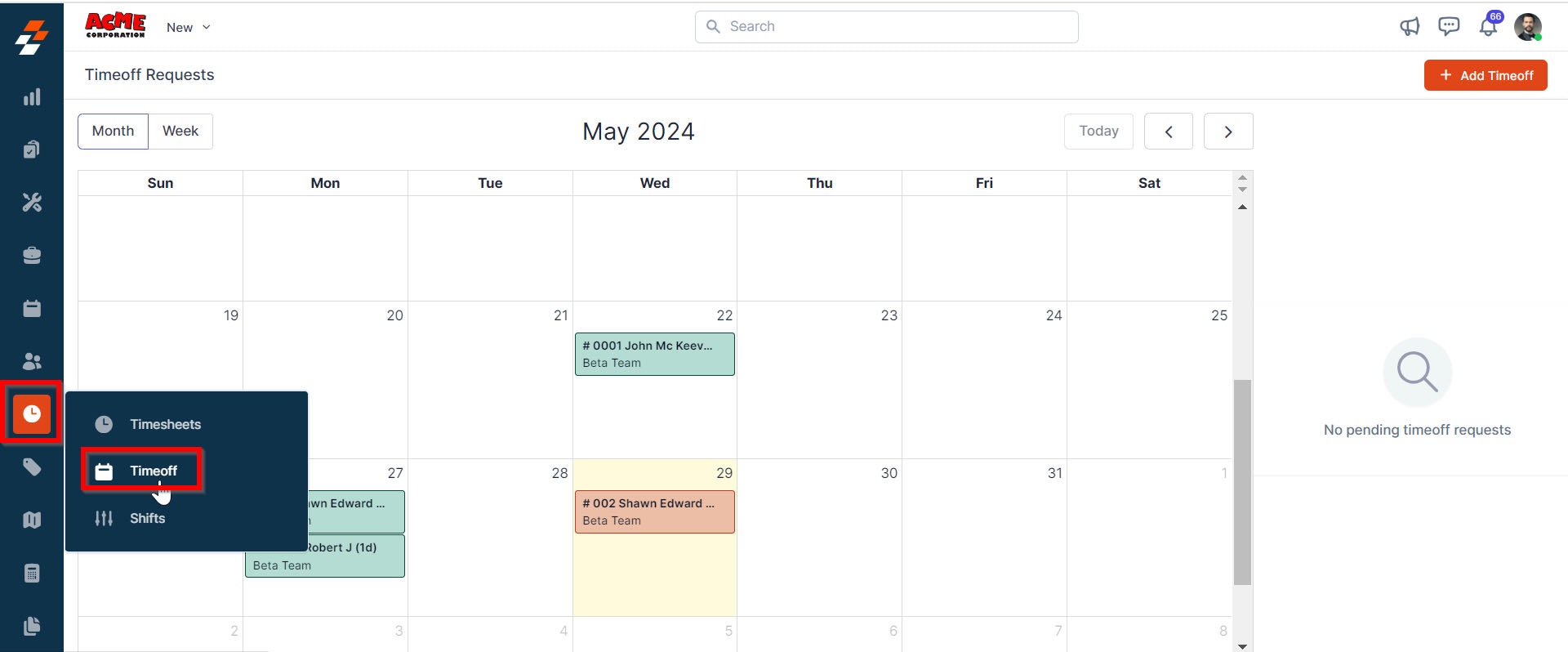
Go to Timesheets
-
Click Timeoffs
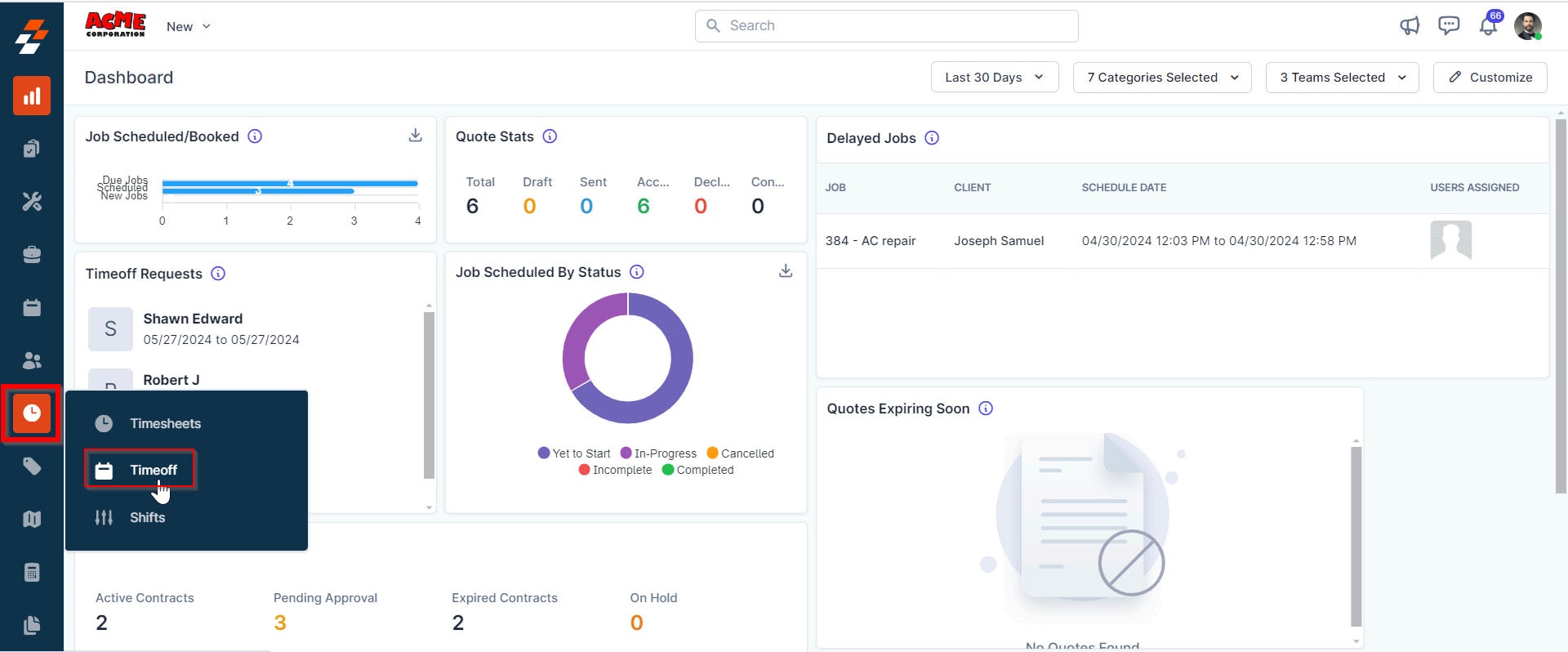
This will take you to the time-off calendar where all requests are visible.
Viewing Time-Off Requests
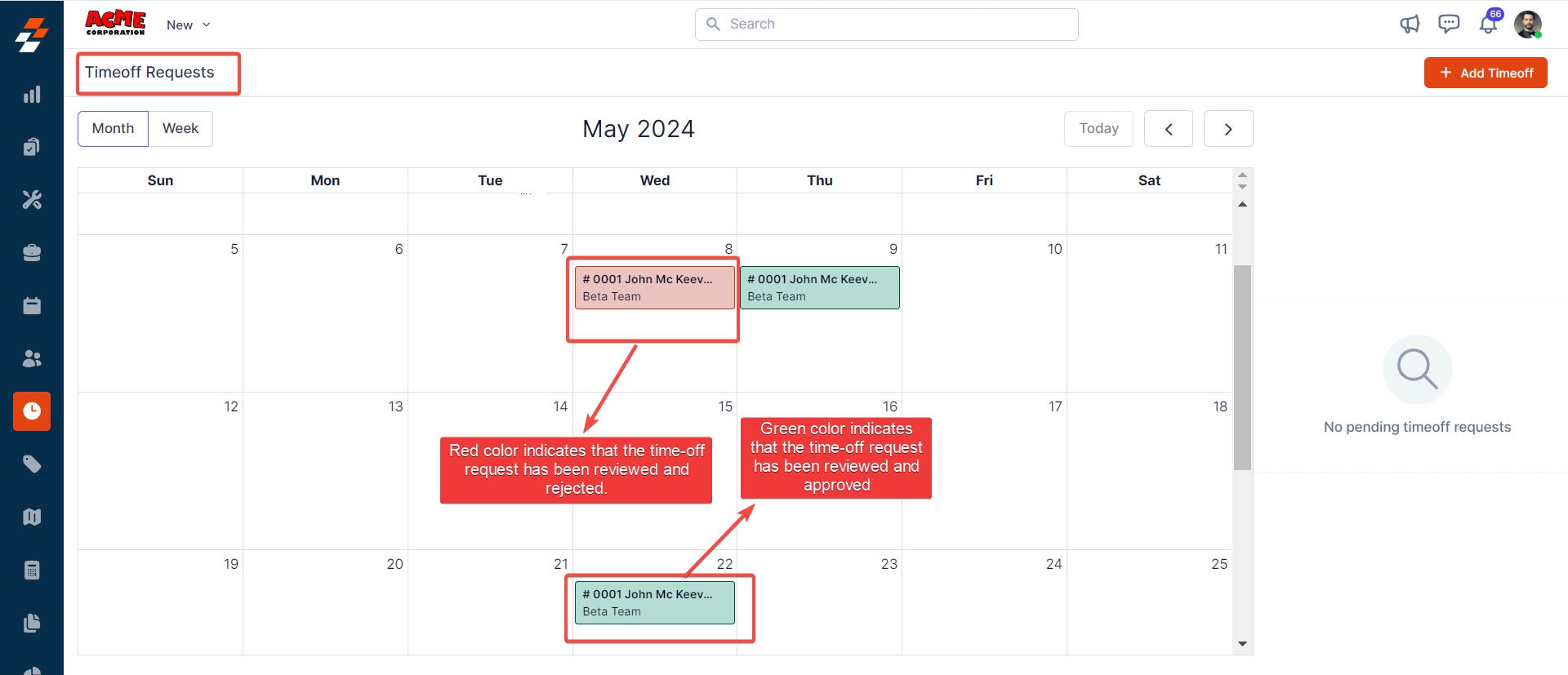
All requests are displayed in a calendar format.
Each request includes a status:
-
Pending (Blue): Waiting for approval
-
Approved (Green): Confirmed time off
-
Rejected (Red): Denied request
Calendar Views
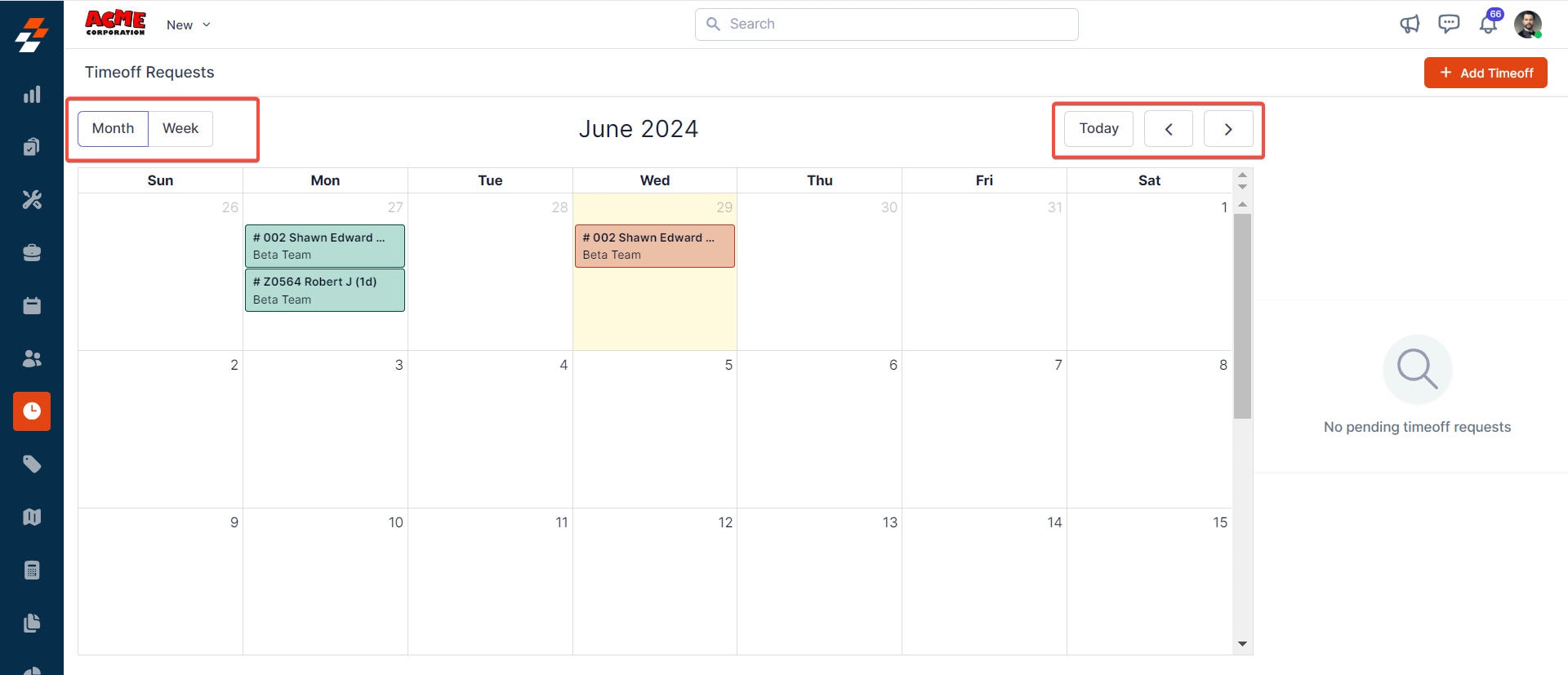
You can switch between:
-
Month View → High-level planning
-
Week View → More detailed scheduling
💡 Best Practice:
Use week view when planning installs and service routes to avoid conflicts.
Approving or Rejecting Requests
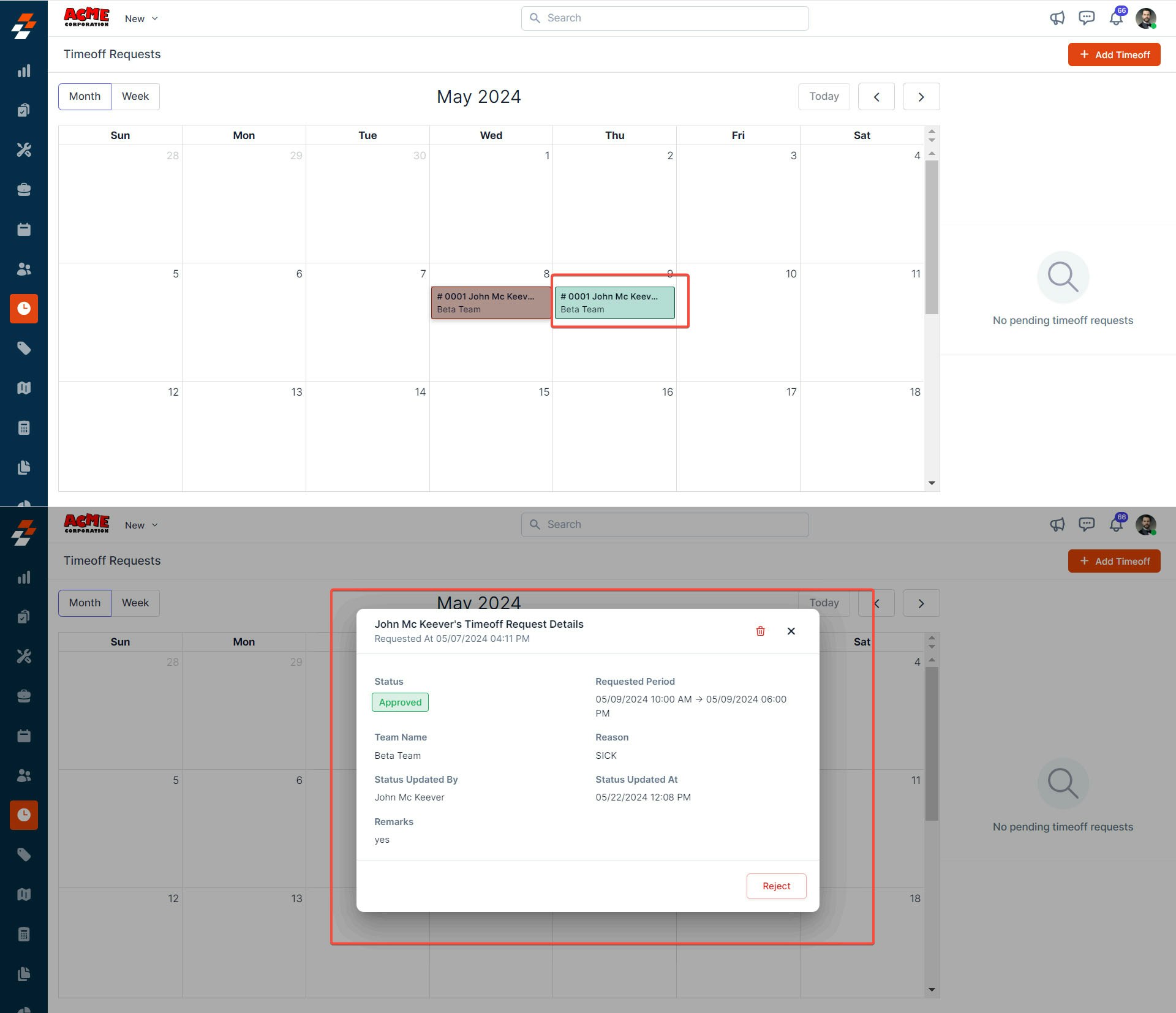
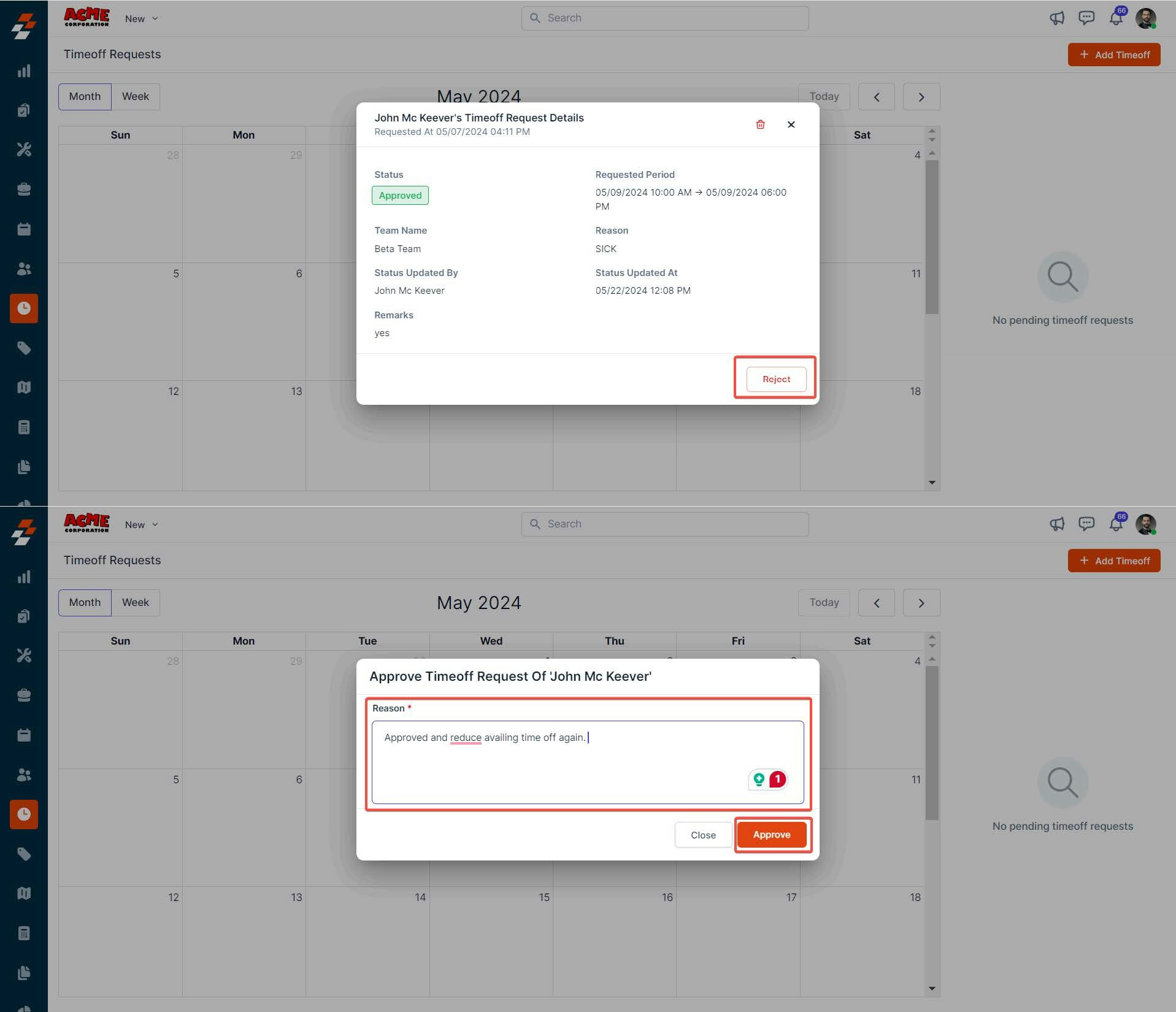
As an admin, you control whether time-off requests are approved.
Steps:
-
Click on a time-off request
-
Review details:
-
Dates
-
Reason
-
Notes
-
-
Choose:
-
Approve
-
Reject
-
You’ll be prompted to add a reason, which is shared with the technician.
Creating Time-Off Requests (Admin)
You can also submit time-off on behalf of your team.
Steps:
-
Go to Timeoff
-
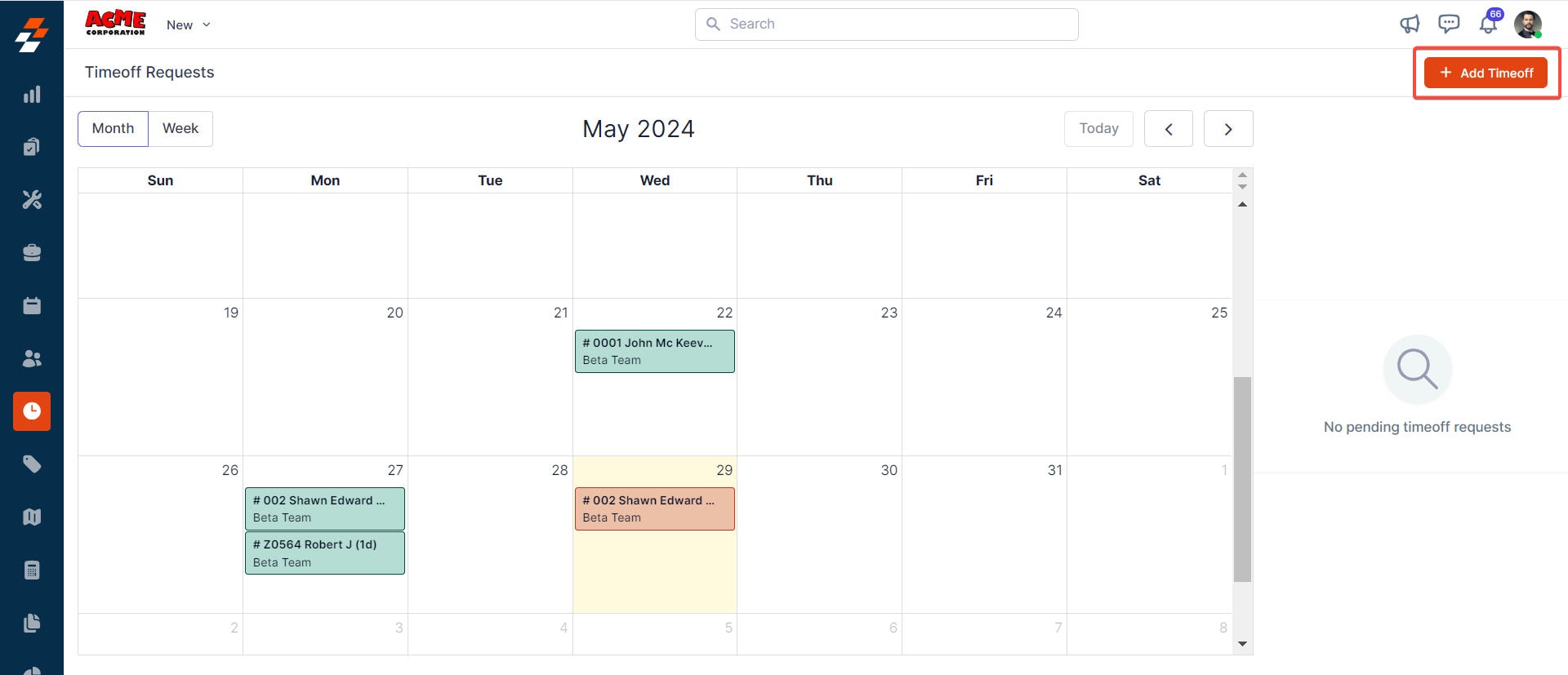
Click + Add Timeoff
-
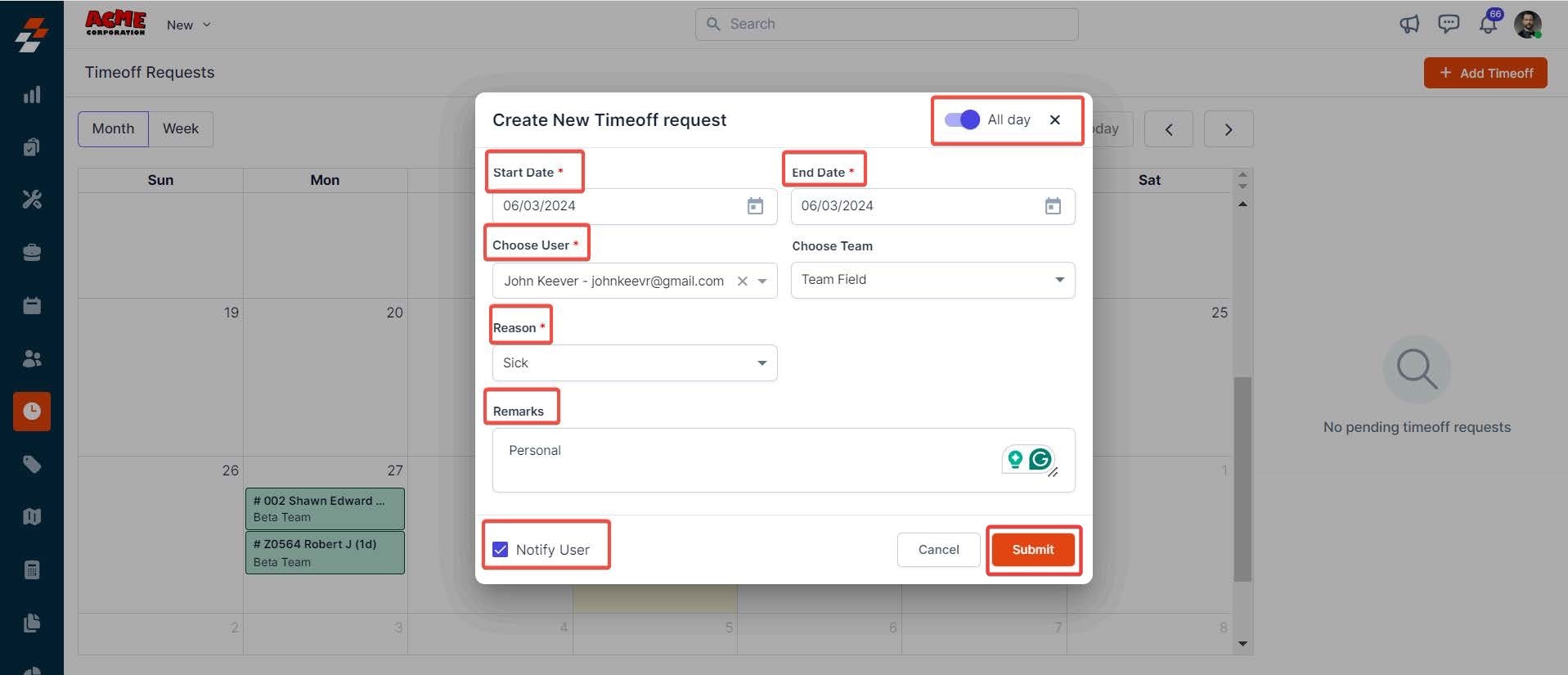
Fill in:
-
-
Start Date (Required)
-
End Date (Required)
-
User (Required)
-
Team
-
Reason (Vacation, Sick, Personal, etc.)
-
Remarks (Optional)
-
-
Click Submit
Partial-Day Time Off
If the time off is not for a full day:
-
Turn off All Day
-
Enter specific start and end times
Notifications
You can choose to notify the user when:
-
A request is created
-
A request is approved or rejected
Using Time-Off on Mobile
Technicians can submit and track time-off directly from the Zuper mobile app.
Submitting Time-Off (Mobile)
-
Open the Zuper Mobile App
-
Navigate to Timesheets / Timeoffs
-
Tap Request Time Off
-
Enter:
-
Dates or time range
-
Reason
-
Notes
-
-
Submit the request
What Techs Can Do
-
Submit new requests
-
View status (Pending, Approved, Rejected)
-
Track upcoming time off
💡 Best Practice:
Encourage technicians to submit time-off requests as early as possible to avoid scheduling conflicts.
Important Note
Zuper does not track vacation balances (PTO, accruals, etc.).
If you need:
-
PTO tracking
-
Accrual management
-
HR compliance
You’ll need to use a separate HR system.
Summary
Time-off management keeps your schedule accurate and your operations running smoothly.
When used correctly, it helps you:
-
Plan ahead
-
Avoid conflicts
-
Keep jobs on track
Pro Tips
-
Review time-off requests weekly
-
Check time-off before scheduling jobs
-
Use week view for detailed planning
-
Require advance notice for non-emergency requests
What’s Next?
👉 Learn how to manage shifts and technician availability for better scheduling control.