
Navigation Overview
🎥 Navigation Overview Video
-
Left-side navigation
-
What each screen does
-
Global search features

Left-Side Navigation Menu
The left-side navigation menu is your primary way to move between different areas of Zuper.
From here, you can access key modules such as jobs, customers, invoices, reports, and other core system functions.
Global Search
The Global Search bar allows you to quickly find records across the system.
You can search for:
-
Jobs
-
Customers
-
Properties
- Organizations
- Invoices
-
Assets
-
And other records
This is the fastest way to locate specific information without manually navigating through menus.

Breadcrumb Navigation
Breadcrumbs appear at the top of your screen and show where you are within Zuper.
They:
-
Display your navigation path
-
Allow you to quickly jump back to previous screens
-
Help prevent getting “lost” within records
Tabs Within Records
When viewing a record (such as a job or customer), information is organized into the left and right menus. The left menu contains:
- Details
- Line Items (Parts)
- Notes
- Activities
- Chat
- Gallery
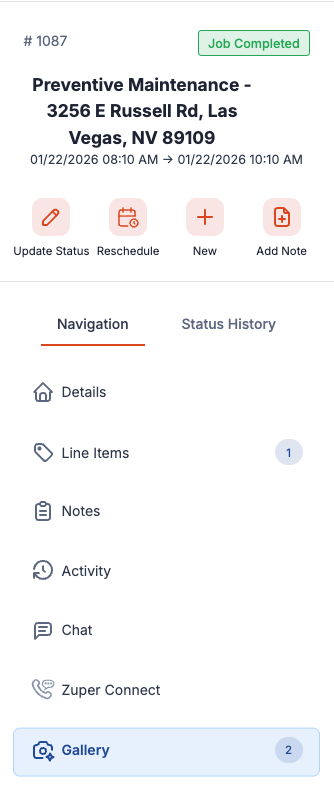
The right menu is the Associations menu. This show where this (job, quote, customer, invoice etc) is connected to other modules within the system. All of the following can be connected together:
- Users/Teams
- Organization
- Customer
- Property
- Quotes
- Invoices
- Contracts
- Assets
- Attachments
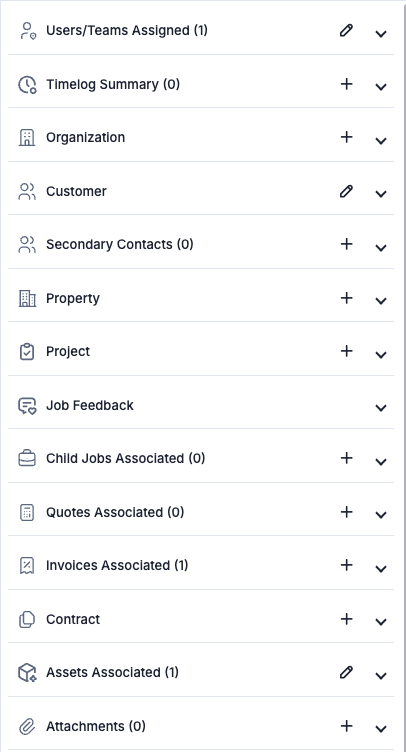
NOTE: Not every record needs to have all of these connected in this menu. This just serves as easy navigation to find related items to this Job or Customer.

Additional Navigation Resources
For deeper training on specific features:
-
🎥 Filters (Customizing Your View):
-
🎥 Breadcrumb Navigation:


FAQ — Navigation
How do I customize my view?
Use Filters to adjust what records are displayed.
See the Filters video above for step-by-step instructions.
How do I search quickly?
Use the Global Search bar at the top of the screen.
See the Global Search video above for more details.